A single product photo only tells part of the story. Shoppers want to see an item from every angle before they buy, the front, the back, the details, the packaging. When your affiliate content shows only a single flat image, you give readers less reason to trust the product and to click your link.
That’s exactly the gap the AffiliateX image slider fills. Instead of one static photo, you can now display several product images in a smooth, interactive slider right inside your posts. Visitors swipe or watch the images rotate to get a fuller view of the product and feel more confident clicking through.
This guide shows you how to create stunning product image sliders with AffiliateX, step by step. You will learn which blocks support the feature, the two ways to add images, how to customize the slider, and a few tips to improve conversion.
Quick Answer: How Do You Create an Image Slider in AffiliateX?
To create a product image slider with AffiliateX, add a supported block to your page, open its Image Settings, and either pull product images from Amazon using the Creators API or upload them manually. Then enable “Use Multiple Images,” turn on the slider options, and adjust autoplay, arrows, and pagination to taste. The whole process takes a few minutes, and you don’t need to write a single line of code.
What Is the AffiliateX Image Slider?
The image slider arrived in AffiliateX version 1.4.4. It lets you display multiple product images in a single interactive slider, so readers can scroll through several views of an item without leaving your content.
Best of all, it’s available in both the free version and with Amazon integration. So whether you are just starting out or running a full Amazon affiliate site, you can use sliders right away.
Why Product Image Sliders Matter for Affiliates
A slider isn’t just a nice visual touch. It directly supports the goal of every affiliate page: more clicks and more trust. Here’s why it works.
It shows products from multiple angles: Readers see the full picture, literally. More details mean fewer doubts and more confidence to buy.
It grabs attention: Movement draws the eye. An autoplay slider stands out on the page far more than a still image, keeping visitors engaged with your content.
It builds credibility: Rich, detailed product visuals make your review or comparison feel thorough and professional, which encourages readers to act on your recommendation.
It improves the experience: Clean, interactive visuals make your page feel polished. A better experience keeps people on your site longer, which can also help your SEO.
Two Ways to Add Images to Your Slider with AffiliateX
AffiliateX gives you two simple paths to fill your slider. Pick whichever suits you.
1. Pull images from Amazon automatically. If you have connected the Amazon Creators API, AffiliateX fetches your product’s images for you. You search for the product, select the images you want, and they drop straight into the slider. This is the fastest route and keeps everything tied to the real Amazon listing.
2. Add images manually. Prefer to choose your own visuals, or not use the API? You can upload images manually from the block’s Images section and arrange them in the slider in the same way. This gives you full control over which images appear.
Both methods lead to the same result: a smooth, interactive slider. You are free to mix and match based on the block and the product.
Step-by-Step Guide: How to Create Your Image Slider with AffiliateX
Let’s walk through the setup using the Product Image Button block as our example. The same steps apply to every supported block, so once you learn this, you can repeat it anywhere.
Step 1: Add the Block
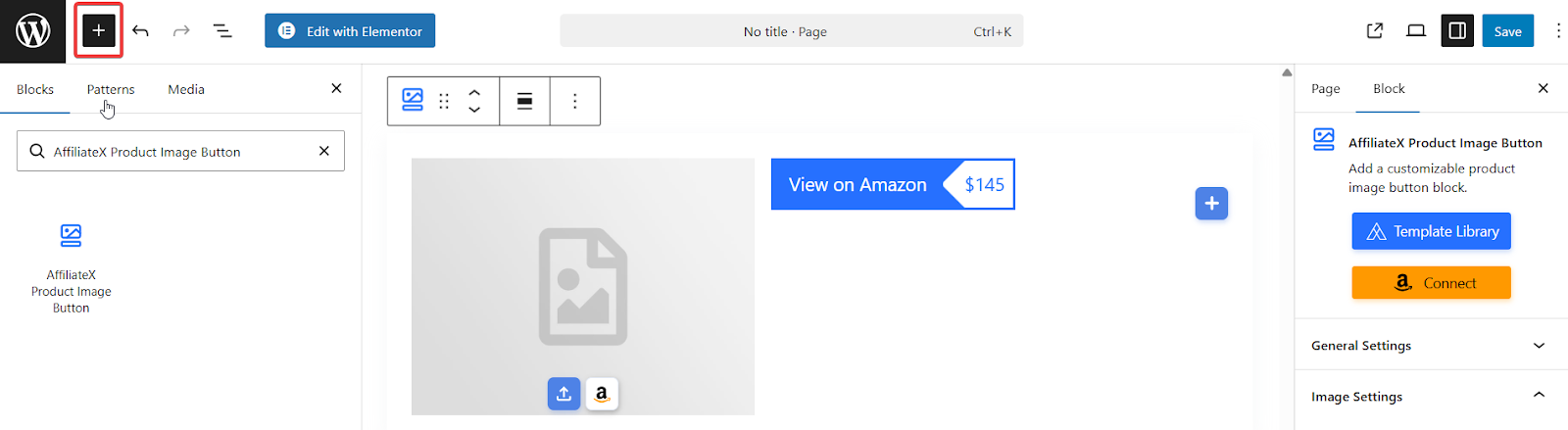
Open the page or post where you want the slider. Click the “+” icon in your WordPress editor, search for the AffiliateX Product Image Button block, and drag it to the spot you want. You can start from a ready-made template design or build the block from scratch, whichever you prefer.
Step 2: Choose Your Images
Head to the block’s Image Settings, then open the Amazon Product Search section. Search for the product you want to feature and click the Amazon API integration icon to load its images.
Now enable the “Use Multiple Images” option. This is the switch that turns a single photo into a slider. You can select every image Amazon offers or pick just the ones you like. If you are adding images manually instead, open the Images section, upload your own images, and continue as before.
Step 3: Customize the Look and Motion
This is where your slider goes from basic to stunning. AffiliateX gives you a full set of controls.
First, fine-tune the layout with Image Alignment, Horizontal and Vertical Alignment, Image Width, and Radius, so the slider fits your design perfectly.
Then shape the slider behavior:
Turn on Show Pagination to display dots that mark each slide.
Turn on Show Arrows so visitors can click through images, and set the Arrow Color and Arrow Hover Color to match your theme.
Enable Auto Play and choose a speed, so the images rotate on their own for a lively, eye-catching effect.
Adjust these until the slider feels right, then publish. That’s it, your interactive product slider is live.
Use It Across All Four AffiliateX Blocks
One of the best parts is consistency. The setup is identical for the Single Product, Single Coupon, Single Product Pros and Cons, and Product Image Button blocks. You simply choose the block you need, open its Image Settings, and configure the slider the same way.
This means you can add sliders to product reviews, coupon highlights, and pros-and-cons breakdowns alike, all with one familiar process. Your whole site gets a uniform, professional look without extra effort.
Tips for Sliders That Convert
A slider works best when it’s purposeful, not just decorative. Keep these simple habits in mind.
Use three to five images: Enough to show the product fully, not so many that visitors lose interest. Quality beats quantity.
Lead with your strongest image: Put the clearest, most appealing shot first, since it’s the one most people will see.
Keep autoplay speed comfortable: Too fast and readers can’t take it in. A relaxed pace lets each image land.
Match the slider to your theme: Set arrow colors and radius to blend with your design, so the slider feels built-in, not bolted on.
Pair it with strong copy: A great slider supports your words. It doesn’t replace them. Combine clear visuals with an honest, helpful review for the best results.
Explore AffiliateX Image Slider Now!
Product image sliders turn flat, single-photo affiliate content into interactive, compelling content. With AffiliateX, you can build them in minutes, pull images straight from Amazon or upload your own, enable the slider, and fine-tune the motion until it looks just right.
The feature lives in four blocks, works in the free version, and even runs without an API thanks to AffiliatX Zero API mode. That makes it easy for anyone to start, no matter where they are in their affiliate journey.
So pick a block, add a few strong images, switch on the slider, and give your readers a richer look at the products you recommend. A clearer view builds trust, and more trust means more clicks. Create your first product image slider with AffiliateX today and watch your content come to life.
Quick, clear explanations to help you use AffiliateX with confidence.
01
Which AffiliateX blocks support the image slider?
The image slider works in four blocks: Single Product, Single Coupon, Single Product Pros and Cons, and Product Image Button. You configure it the same way in each one through the Image Settings section.
02
Can I create a slider without connecting to the Amazon API?
Yes. You can add images manually from the block’s Images section, or use AffiliateX Zero API mode to start building sliders immediately without API credentials.
03
How do I add multiple images to one product?
After adding a supported block, open Image Settings, search for your product, and enable the “Use Multiple Images” option. You can then select all available images or just the ones you want in the slider.
04
Can I make the slider rotate automatically?
Yes. In the slider settings, enable Auto Play and choose your preferred speed. You can also turn on arrows and pagination so visitors can navigate the images themselves.
Afrin is a skilled Product Marketing Specialist passionate about WordPress products. She effectively combines her background in Telecommunication Engineering and her MBA in Marketing to bridge technology and marketing. Afrin transforms technical WordPress features into compelling, user-centric content that drives conversions and fosters engagement. In her free time, she enjoys traveling, animated movies, and singing, reflecting her creativity and adventurous spirit.