Building an Amazon affiliate site used to be hard. You had to learn how to code, pay a developer, or put up with plain pages that didn’t get many clicks. None of these choices was fun, and none of them helped your site stand out from the crowd.
Elementor changed the design side of that equation. It lets anyone build beautiful WordPress pages by dragging and dropping, no code required. But Elementor alone doesn’t pull in Amazon products, track your links, or keep prices up to date. That’s where AffiliateX comes in.
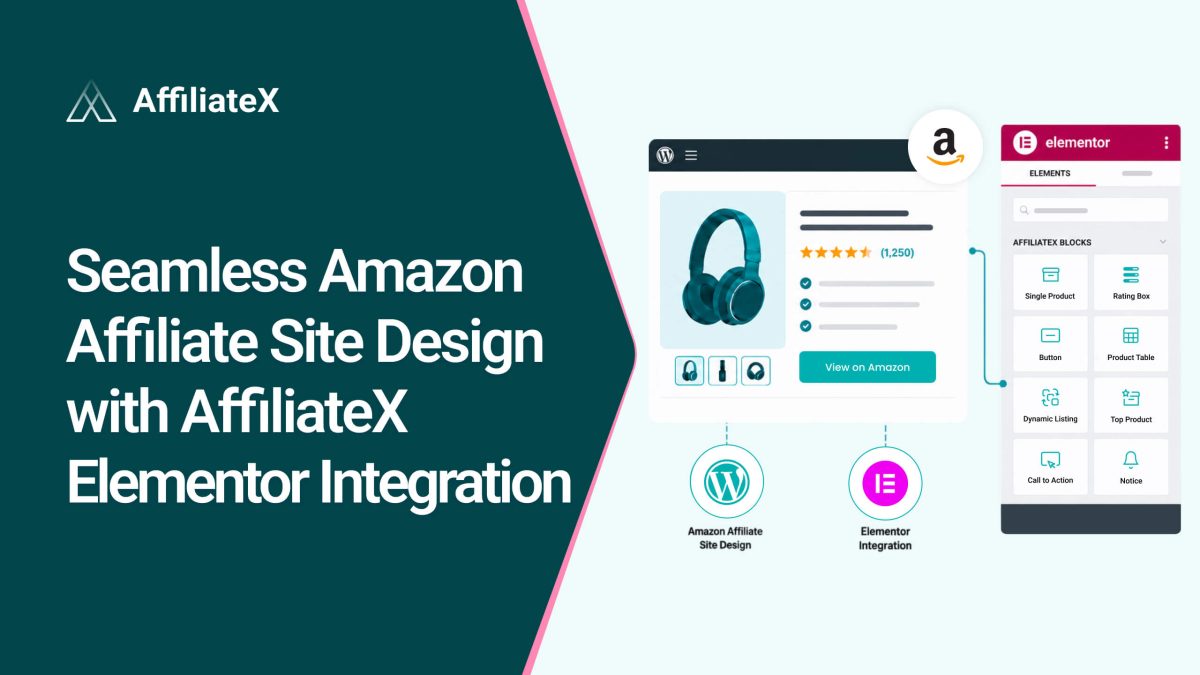
Together, they make a powerful pair. With the AffiliateX Elementor integration, you can design your affiliate site visually and fill it with live Amazon product data at the same time. This guide walks you through how AffiliateX Elementor integration works, how to set it up, and how to use it to build a site that looks great and converts well.
Quick Recap: AffiliateX adds its affiliate blocks directly into the Elementor editor. You drag a block onto your page, connect it to an Amazon product through the Amazon API, and the product’s title, image, price, description, and tracking link load in automatically. You then style everything visually with Elementor’s controls, no coding needed.
In short, you get Elementor’s design freedom plus AffiliateX’s affiliate tools in a single, seamless workflow. Let’s break down why that combination matters and how to make the most of it.
Why Elementor Is a Smart Choice for Affiliate Sites
Elementor is one of the most popular WordPress website builders, used on millions of sites. It’s easy to see why, and those same strengths make it a strong base for an affiliate site.
It uses a simple drag-and-drop editor with real-time editing. You move sections and widgets around and see the changes right away, so building a page feels more like play than work. You don’t need to know HTML, CSS, or JavaScript to make pages look professional. And it comes with a large library of widgets and ready-made templates you can start from.
A clean, professional page also helps you earn. When your reviews and comparisons look polished, readers trust your advice more and are more likely to click your links. Elementor handles the layout, colors, and mobile design with ease.
The one thing Elementor can’t do on its own is manage affiliate products. Its basic buttons and image widgets aren’t built to show products in a way that converts, and it can’t connect to Amazon to pull in product details. That gap is exactly what AffiliateX fills.
What AffiliateX Brings to Elementor
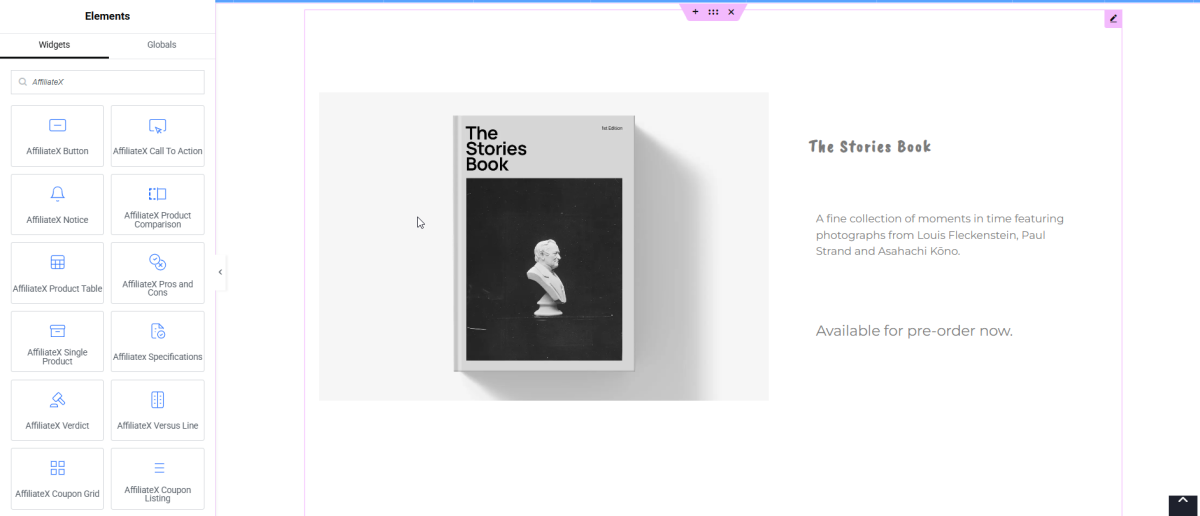
AffiliateX is a WordPress plugin made for affiliate marketers. It gives you a set of ready-to-use blocks that show products in ways that build trust and earn clicks. These blocks work right inside Elementor, and you can use them as Elementor’s own widgets in the Elements panel.
These blocks are lightweight and built to load fast. You will find one for almost every affiliate need. The free version includes essential blocks like:
Single Product
Product Comparison Table
Pros and Cons
Specification
Call to Action
Verdict
Product Table
Button
Notice
Versus Line
If you upgrade to AffiliateX Pro, you unlock more features, including Top Product, Product Tabs, Rating Box, Versus, Single Product Pros and Cons, Product Image Button, and coupon blocks such as Single Coupon, Coupon Grid, and Coupon Listing. AffiliateX Pro also includes Amazon API integration, which you will learn about later. Every block can be customized, works with any theme, and is responsive by default. So whatever your niche or style, you can shape these blocks to fit your site.
Open the page or post you want to edit in Elementor. In the Elements panel on the left, type the name of the block you want in the search bar, for example, “AffiliateX Single Product.” The block appears in the results.
Now drag it from the panel and drop it where you want it on the page. That’s it. The block is placed and ready. From here, you can connect it to an Amazon product or style the design first, in whatever order you like.
Connecting Amazon Products to Your AffiliateX Blocks In Elementor
If you want to connect with Amazon products, you need to get AffiliateX Pro. Once your Amazon API is connected, you can fill your blocks with real product data in seconds. There are two ways to do it. One is connecting everything at once, or connecting fields one by one. You can check out the How to Use Amazon API with Elementor documentation for more details.
Option 1: Connect All Product Details at Once
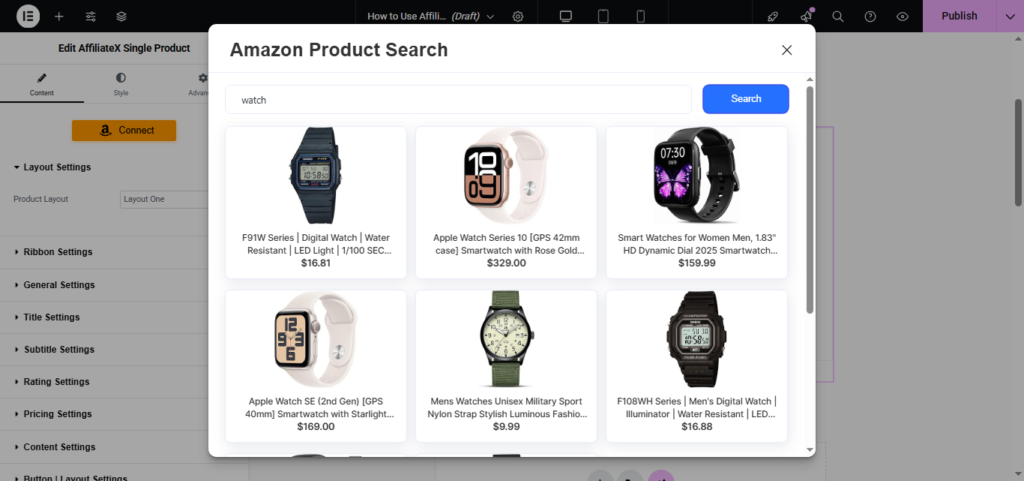
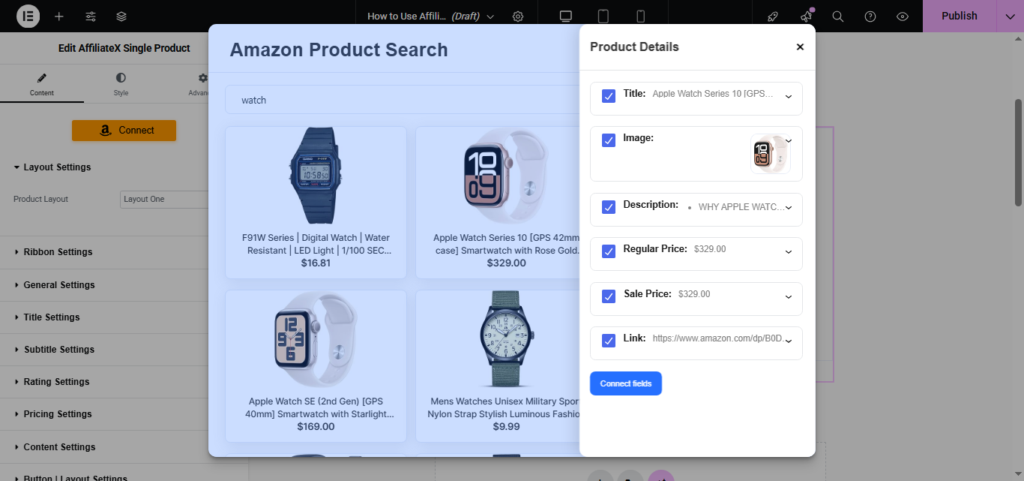
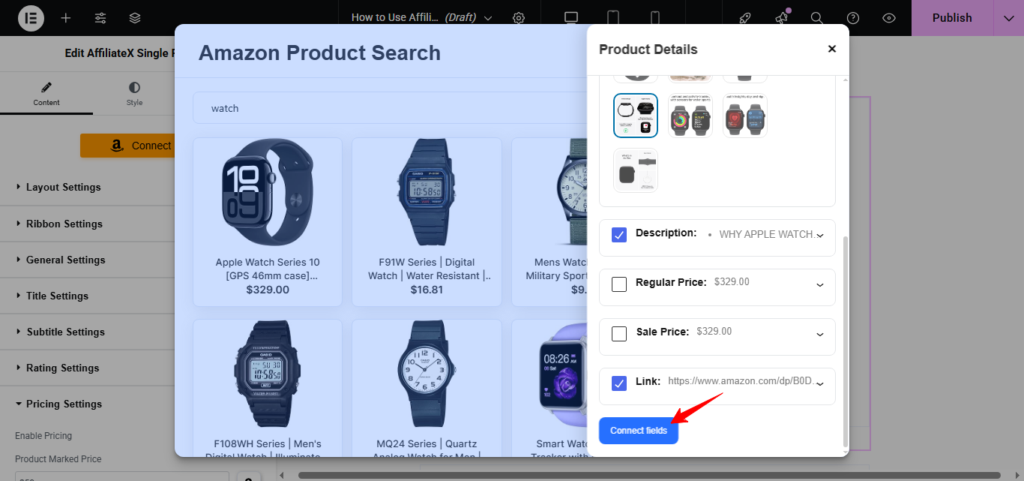
Click the “Connect” button on your block. This opens the Amazon Product Search window. Type a keyword to see matching products, then click the one you want. AffiliateX loads its details right away, including the title, image options, description, price, and your tracking link.
By default, every field is ticked, so they all connect. If you don’t want a certain field, just untick it. If you want a different image, click the drop-down arrow in the image section and choose from the product’s other images. When it looks right, click “Connect fields,” and your block fills with live data.
Need to change something later? Click the “change” icon in the sidebar to swap the product, switch the image, or disconnect a field. Your content stays flexible.
Option 2: Connect Individual Fields
Sometimes you want to pull in only certain pieces of data. AffiliateX lets you connect each field individually. Here’s how each one works.
Title: Open the Title Settings drop-down and click the Amazon icon. Search for your product and connect just the title.
Image: Open the General Settings drop-down. Under Image Source, choose the external source arrow icon, then click the Amazon icon to find the product and connect its image.
Price: Open the Pricing Settings drop-down and switch pricing to “Yes.” Click the Amazon icon, then connect the sale price or the original price. You can also show the price on your button by opening Button Layout Settings, choosing the “Price Button” style, and connecting the sale price there.
Description: Open the Content Settings drop-down, click the Amazon icon to set the content type, then search for the product and bring in its description.
Tracking link: Open the Button General Settings drop-down, click the Amazon icon, and connect your tracking link for that product.
This field-by-field method is handy when you are building a custom layout and want each part sourced exactly how you like.
Designing Product Displays That Convert
Connecting data is only half the job. The real wins come from designing displays that lead readers toward clicking. Because AffiliateX blocks live inside Elementor, you style them with the same controls you already use for the rest of your site.
For a single recommendation, a Single Product block with a clear image, price, and button works well. For roundups, a Product Table or Top Product list lets readers scan options fast. To help someone choose between two items, a Versus or Product Comparison block lays out the differences at a glance.
Reviews feel more honest with a Pros and Cons block, while a Rating Box or Verdict block gives a quick takeaway. Add a Call to Action block at the end, and you guide visitors smoothly from reading to clicking.
The trick is to match the block to the content. Each layout is built for a specific job, so picking the right one makes your page clearer and more convincing with no extra effort.
How AffiliateX Blocks Fit Elementor’s Design System
One of the best parts of this AffiliateX Elementor Integration is how naturally the blocks blend in. AffiliateX blocks inherit Elementor’s design system, so they feel native rather than bolted on.
They automatically pick up your site’s global styling and typography. That means headings, body text, and buttons match the rest of your site, giving you a consistent, trustworthy look, unless you choose to style a block differently.
You also get Elementor’s full responsive controls. You can adjust how each block looks on desktop, tablet, and mobile, so your pages stay sharp on any screen. And if you want total control, custom CSS is supported too, just like in the Gutenberg editor.
Save Time by Reusing Blocks as Templates
Once you have designed a product block you love, you don’t have to rebuild it every time. AffiliateX lets you save your blocks as templates in Elementor and reuse them across your posts and pages.
This is a big time-saver. For example, you could build a “product review template” with your favorite blocks arranged just right, then drop it into every new review with little or no change. Your site stays consistent, every product display follows the same style, and you spend far less time on layout. For sites that publish often, this keeps your workflow fast and your design clean.
Compatible with WooCommerce
If you also sell your own products, the integration goes a step further. AffiliateX blocks can be used on a WooCommerce-powered site, allowing you to mix affiliate products with your own store. That makes AffiliateX a flexible fit whether you run a pure affiliate blog or a hybrid site.
Beyond Design: Features That Support Your Site
A great-looking affiliate site needs more than good design. It needs to stay accurate and healthy over time. AffiliateX backs up the Elementor integration with features that work quietly in the background.
Real-time price updates keep your prices up to date via the Amazon API, so readers never see outdated figures and your pages stay in line with Amazon’s rules.
Multiplatform integration helps affiliates connect AliExpress and eBay products on their affiliate website and promote them accordingly.
Geolocation sends international visitors to the right regional Amazon store, helping you earn from a global audience.
Broken-link checker spots faulty links as soon as they appear, so you can fix them before they cost you sales.
Built-in analytics show which products and placements get the most clicks so that you can refine your design.
Email reports send your site’s performance to your inbox, so you stay informed without checking the dashboard daily.
Image slider lets you show several product photos in a single interactive slider within supported blocks, giving readers a fuller view.
Together, these keep your nicely designed Elementor pages reliable and effective long after you hit publish.
What Will You Build First with AffiliateX Elementor Integration?
Designing an Amazon affiliate site no longer means choosing between good looks and easy management. The AffiliateX Elementor integration gives you both. You design visually with Elementor’s drag-and-drop builder, then fill your pages with live Amazon product data through AffiliateX’s blocks, all without writing a single line of code.
You can connect every product detail at once or one field at a time, choose from a wide range of blocks, save your favorite designs as reusable templates, and start right away with Zero API if you are still waiting on approval. Behind the scenes, real-time pricing, geolocation, link checks, analytics, and more keep your site accurate and effective.
The result is a polished, trustworthy affiliate site that’s a pleasure to build and is built to convert. Install AffiliateX, open Elementor, and start seamlessly designing the affiliate site you have always wanted.
Quick, clear explanations to help you use AffiliateX with confidence.
01
Do I need to know how to code to use AffiliateX with Elementor?
No. The entire process is visual. You drag AffiliateX blocks into the Elementor editor, connect Amazon products with a few clicks, and style everything using Elementor’s controls. No coding is required at any step.
02
How do I add an Amazon product to an Elementor page?
Add an AffiliateX block to your page, click “Connect,” search for your product by keyword, and select it. The title, image, price, description, and tracking link load automatically. You can then uncheck any field you don’t want before connecting.
03
Can I connect just one field, like only the image or price?
Yes. AffiliateX lets you connect individual fields. Each block has settings for title, image, pricing, description, and tracking link, and you can connect any of them individually using the Amazon icon in that field’s settings.
04
Can I reuse my product designs across the site?
Yes. You can save AffiliateX blocks as templates in Elementor and add them to other posts and pages. This keeps your design consistent and saves you from rebuilding the same layout repeatedly.
Afrin is a skilled Product Marketing Specialist passionate about WordPress products. She effectively combines her background in Telecommunication Engineering and her MBA in Marketing to bridge technology and marketing. Afrin transforms technical WordPress features into compelling, user-centric content that drives conversions and fosters engagement. In her free time, she enjoys traveling, animated movies, and singing, reflecting her creativity and adventurous spirit.