

AffiliateX v1.4.4: Introducing New Image Slider Feature for Blocks & Amazon Integration

Exciting news for AffiliateX users! Version 1.4.4 introduces a brand-new AffiliateX Image Slider feature for several exclusive blocks:
- Single Product
- Single Coupon
- Single Product Pros and Cons
- Product Image Button
This new feature is available in both the free version and with Amazon integration, giving you more flexibility in displaying your affiliate products. With AffiliateX v1.4.4, you can now:
- Fetch Amazon product images and related information using the Amazon Creators API
- Display multiple images in an interactive image slider directly on your affiliate website
- Alternatively, manually add Amazon product images to the supported blocks if you prefer not to use the API
This allows your website to look more engaging, helping your visitors see products clearly from multiple angles.
Guide: Configure AffiliateX Image Slider Feature
We are going to take a look at this AffiliateX Product Image Button block, which shows you how to easily configure the image slider feature to showcase your product images in slider mode, using either the Amazon API connection or manual configuration.
If your Amazon Creators API credentials have been successfully integrated, you can now easily navigate to the affiliate page or post from your WordPress dashboard and press the “+” icon.
Afterward, search for the AffiliateX Product Image Button block and drag it to your preferred location on your website.
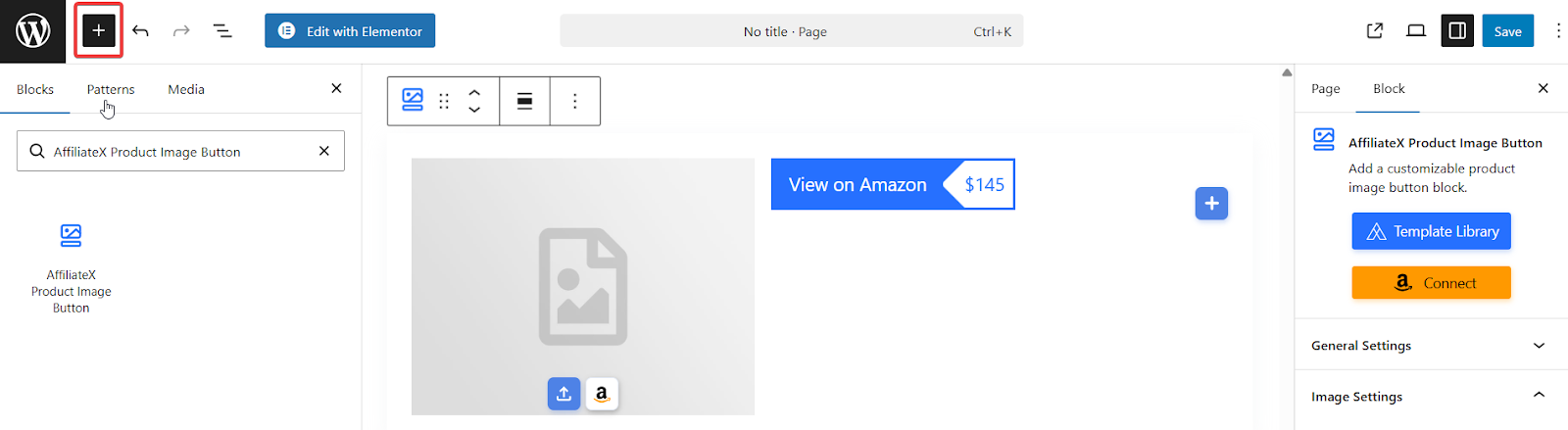
It will redirect you to the default Outlook block, and you can choose from ready-made block template designs or manually design your block as per your preferences.
Now you are all set to click AffiliateX Product Image Button Block → Image Settings → Amazon Product Search section. Now search for your desired Amazon product, select images by clicking the Amazon API integration icon at the top.
All you have to do is enable the “Use Multiple Images” option to display your product’s multiple images, as shown on Amazon. You can easily pick all or the selected images of your affiliate product.
Next, you can fix the product’s image alignment and Slider feature options by enabling the slider image Auto Play section with a speed selection, making your slider look interactive as desired.
Other than that, you have the option to add multiple Amazon product images manually from the Images section and configure them in the same way you have done for the Amazon Creators API mode.
Following this approach, you can easily set up Image Settings sections the same way for AffiliateX Single Product, Single Coupon, and Single Product Pros and Cons. You just need to choose your preferred block and start configuring the image slider to make it more appealing to your target audience.
Bonus Tip for Beginners: Amazon Affiliate Marketers
If you don’t have Amazon Creators API credentials yet or are facing acceptance issues:
- You can use AffiliateX Zero API. This allows you to start adding image sliders immediately without API credentials. It ensures you can continue your affiliate marketing journey without any delays.
Want to read more exciting content like this? Don’t forget to follow our blog posts and our YouTube channel. Stay tuned!