


In this step-by-step guide, you will get to know how to install AffiliateX Free and AffiliateX Pro in your WordPress.
There are two ways you can install and activate them via WordPress:
- Installing from the WordPress directory
- Installing AffiliateX Pro using the plugin’s zip files
Installing Free Version
To install the free AffiliateX plugin through your WordPress directory, navigate to your WordPress Dashboard → Plugins → Add Plugin option.
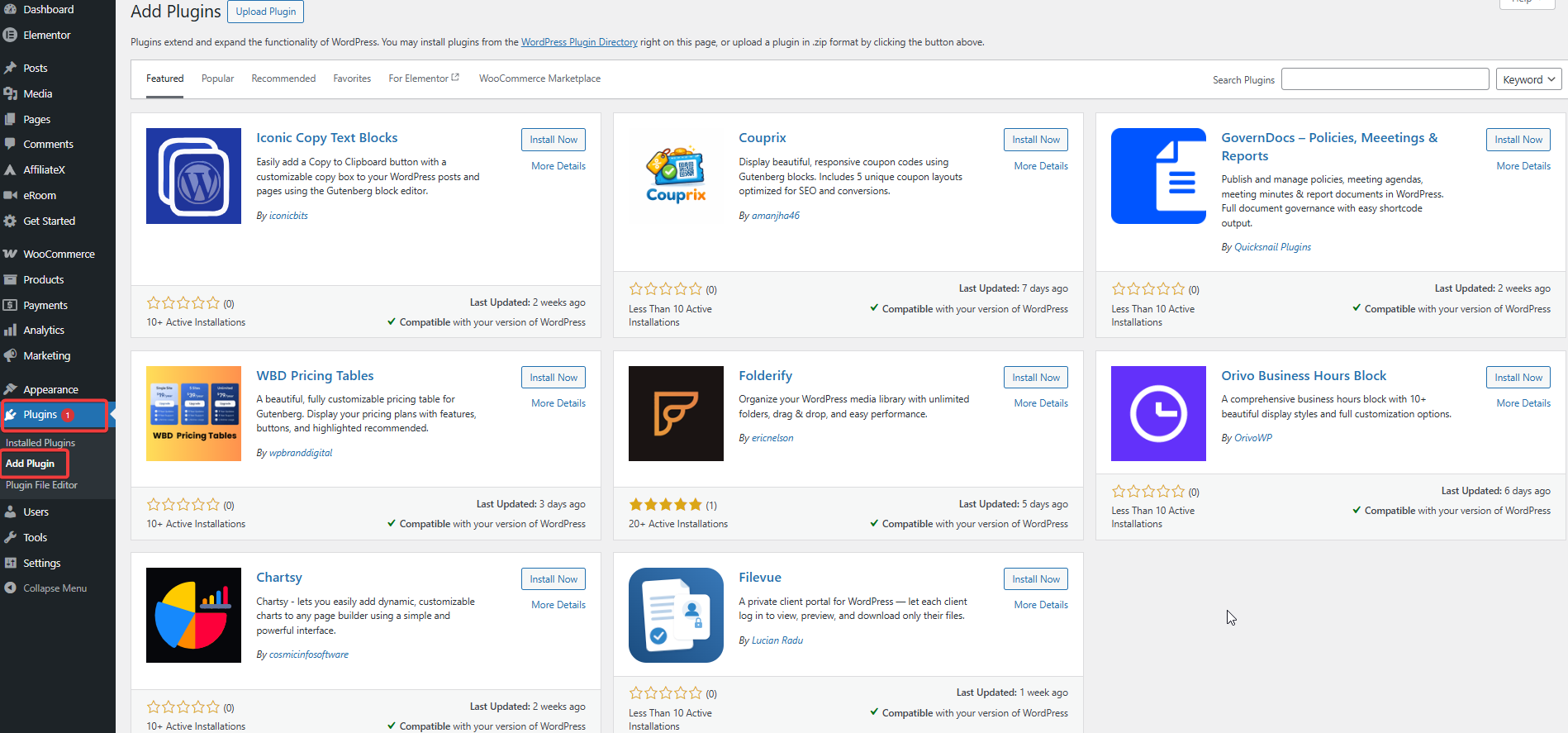
Afterward, you have to type “AffiliateX” in the search bar to find the plugin. You will see the search results below. Click the “Install Now” button to install the plugin.
Once the plugin is installed, click the “Activate” button to activate the plugin.
Purchasing AffiliateX Pro
If you want to purchase AffiliateX Pro, you need to first visit the AffiliateX pricing page, select your preferred plan, and click the “Buy Now” button.
Afterward, a pop-up window will appear where you have to enter your card details and confirm your order by clicking the “Review Order” button, then complete the payment process.
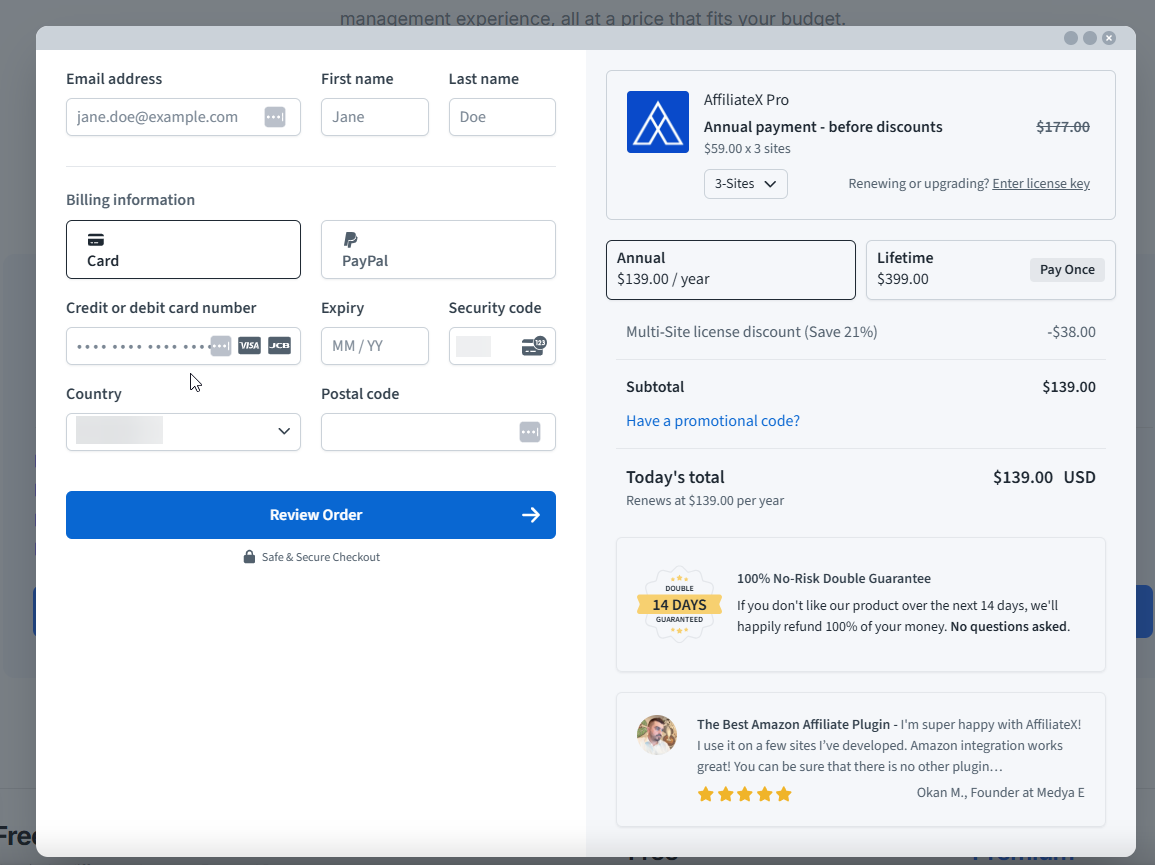
After following the steps, once the payment is successful, you will receive a pop-up notification of successful payment completion. Now your next step is to get AffiliateX license key and the plugin zip file.
Getting License Key and Files
When you purchase the AffiliateX premium subscription, you will receive your license key and plugin files. These are important for installing or setting up the plugin and managing your billing options.
By following two ways, you can get your license key and plugin files:
- Through your registered email
- Downloading from your AffiliateX account dashboard
Getting License Key & Files Through Email
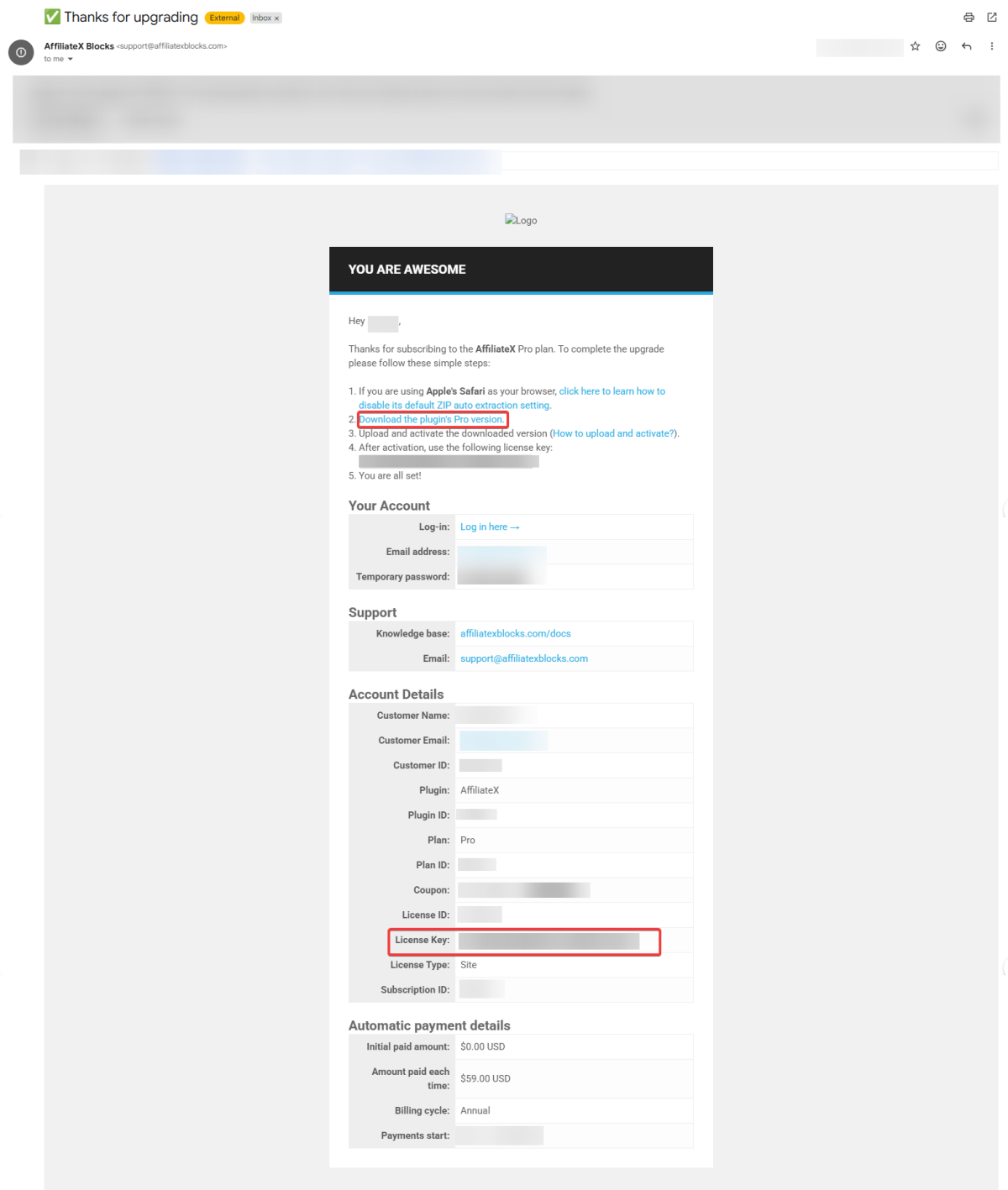
In the email sent to you from AffiliateX, you will find the following:
- License key
- Installation instructions
- The download link to the plugin files
- Your temporary password
Check your “Spam” or “All Mail” folders if you did not receive the email in your inbox.
Now, to download AffiliateX Pro zip file, click the “2. Download the plugin’s Pro version.” option. Your “License Key” is displayed on a rectangular grey background in the “Account Details” section, just below the “Support” section, and will be used during activation.
Getting License Key & Files from Your AffiliateX Account
If you did not receive an email from support@affiliatexblocks.com, you can download the plugin files and get the license key from your AffiliateX account dashboard.
To get your license key, log in to your AffiliateX account.
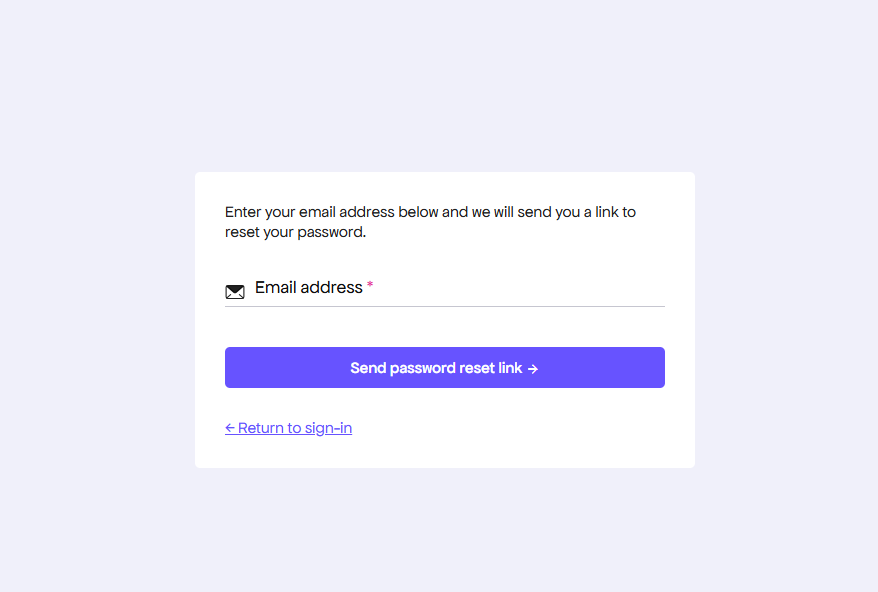
Since you did not get an email with your temporary password, click the “Never received your password?” option.
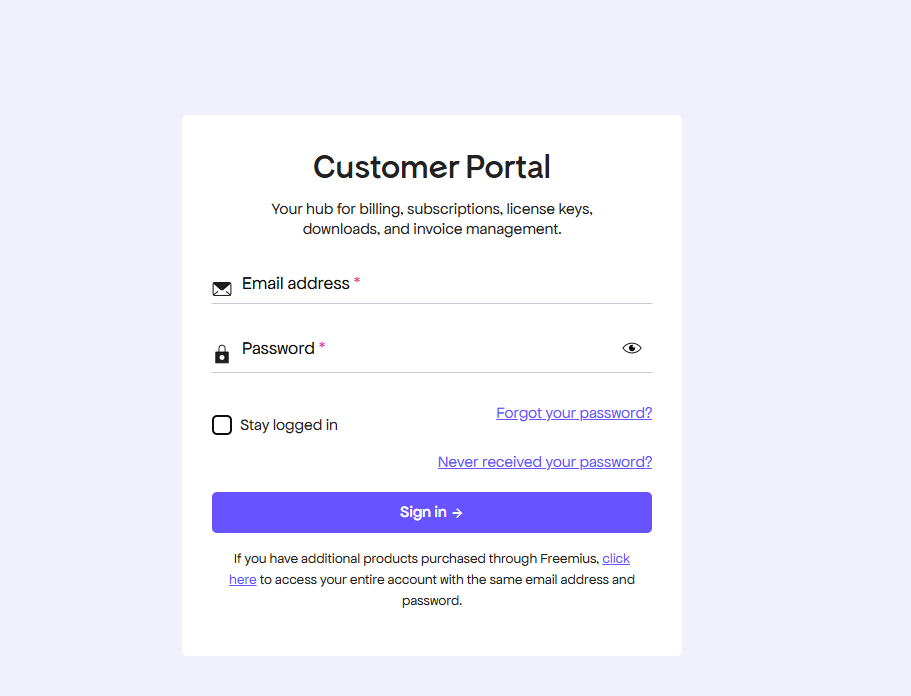
You will be prompted to enter your email address to get a password reset link.
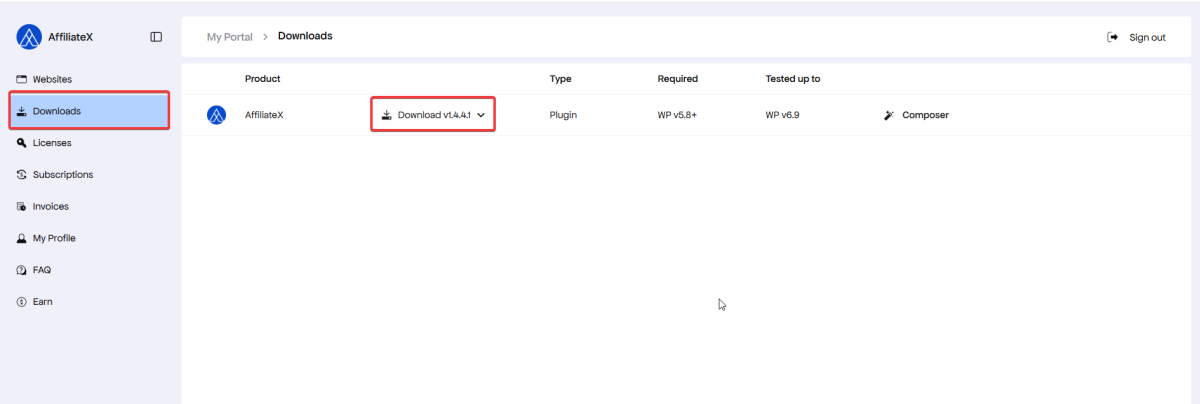
When you are successfully logged in, download the plugin zip file by clicking the “Downloads” option on the left panel of your dashboard. Click the “Download v…” button.
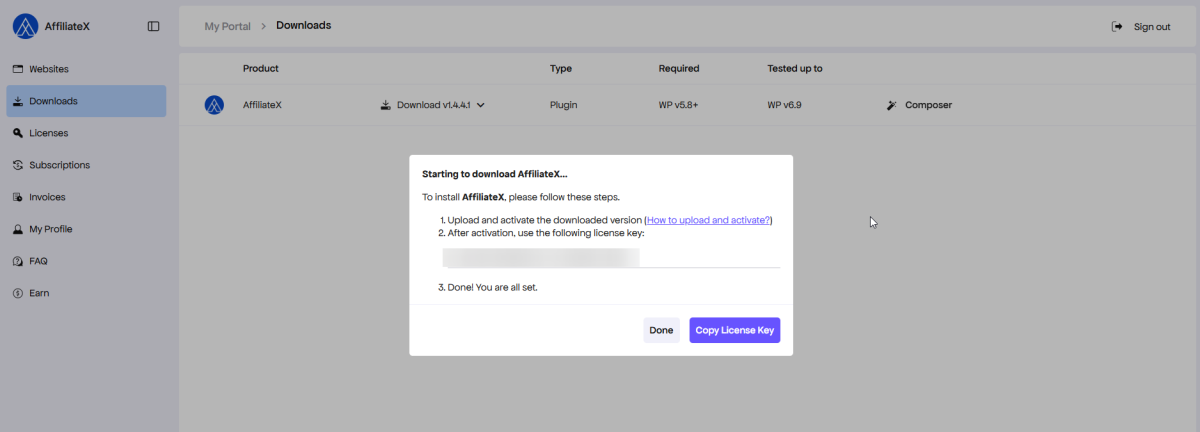
Immediately, you will see a pop-up notification on your screen with instructions to install the AffiliateX Pro plugin and copy your license key while the plugin file is downloading.
Accessing License Key Separately on Your Dashboard
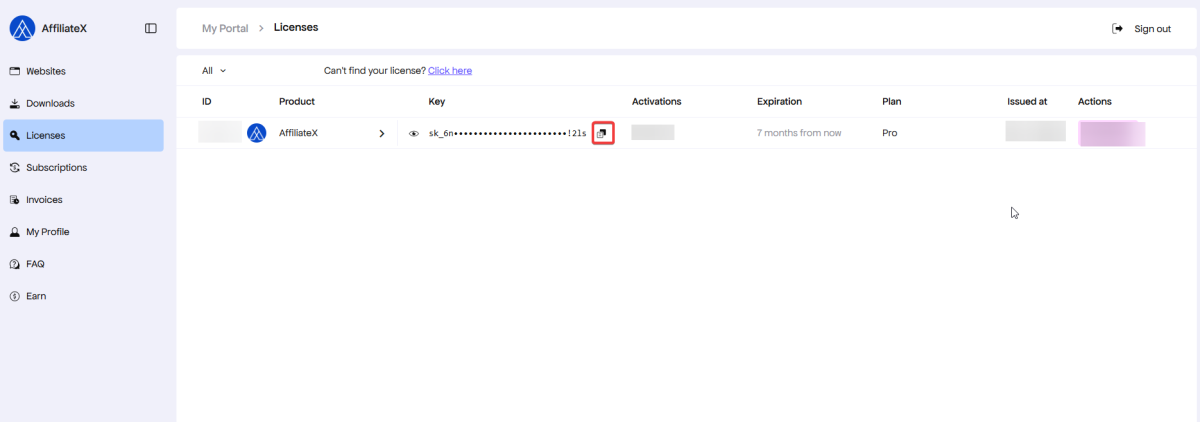
If you didn’t copy your license when downloading the plugin zip file in your dashboard, you will access it when you click the “License” option on the left panel of your dashboard. Click on the“copy” icon beside the license key to copy it.
Installing AffiliateX Pro
To install AffiliateX Pro, you must upload the plugin’s zip file. Go to your WordPress dashboard and navigate to Plugins → Add Plugin → Upload Plugin button.
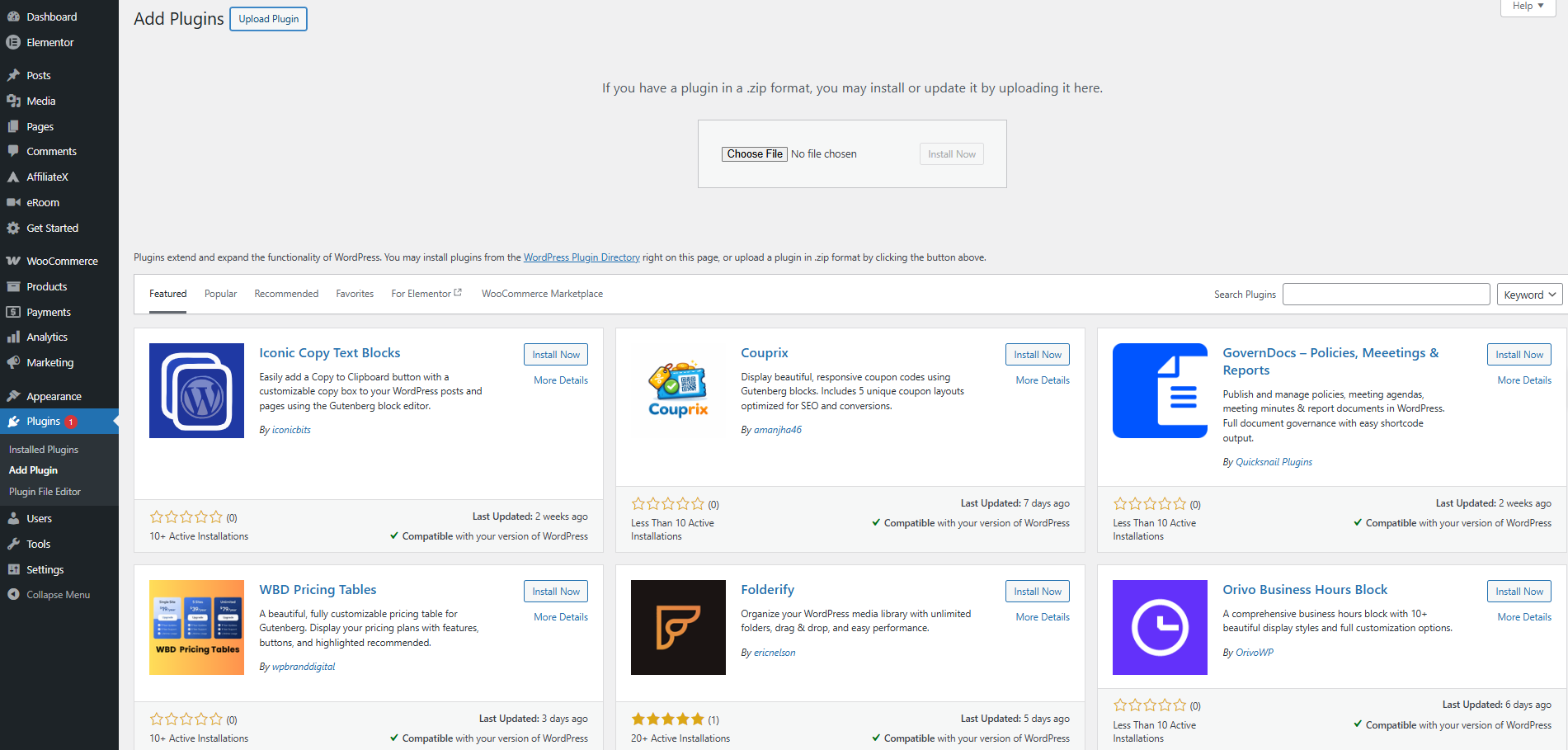
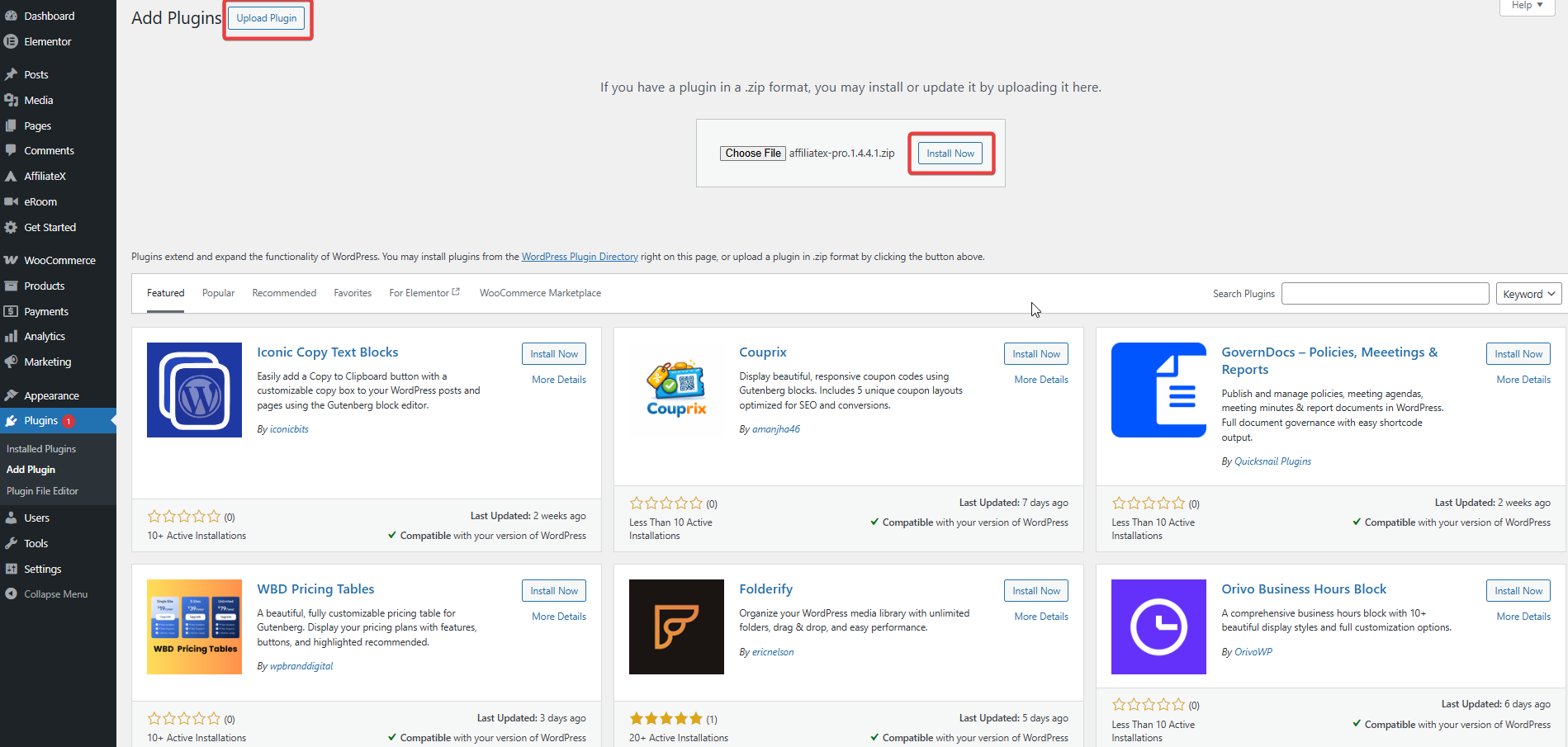
Afterward, click the “Choose File” button to upload AffiliateX Pro plugin file. Once the AffiliateX Pro plugin’s zip file is successfully uploaded, click the “Install Now” button to install the plugin.
Activating AffiliateX Pro
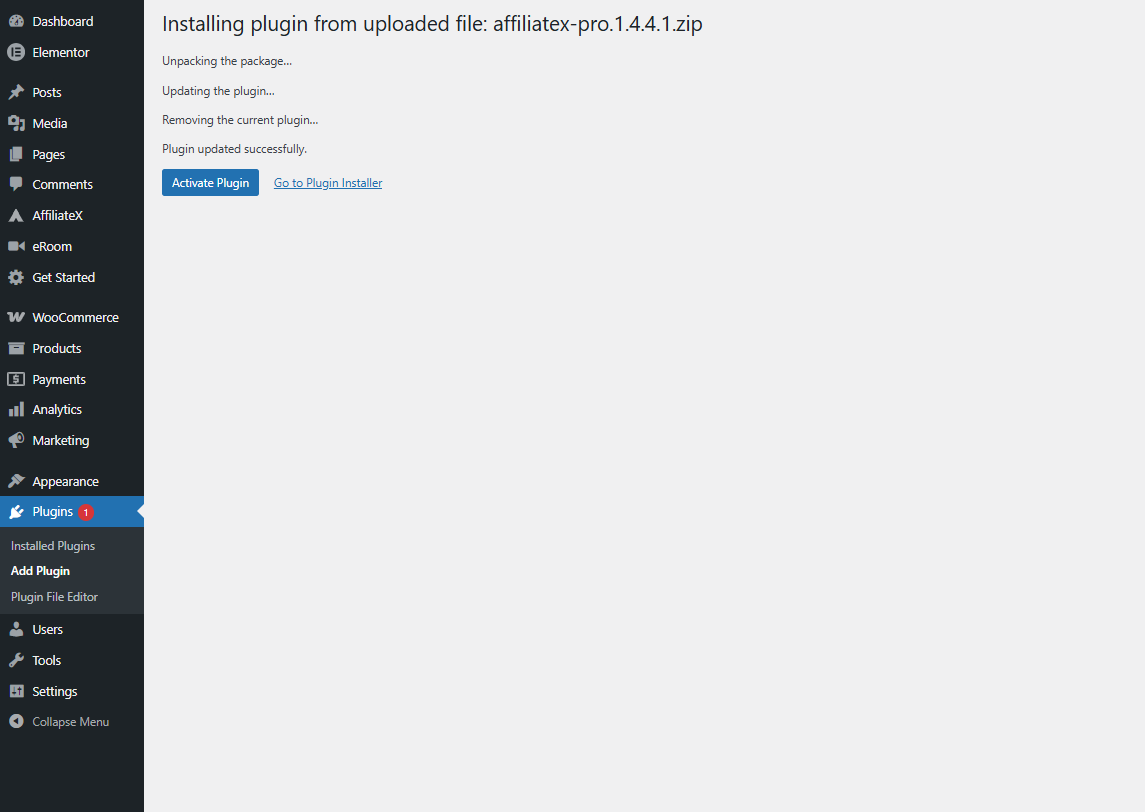
Now that you have successfully installed AffiliateX Pro as shown in the image below, click the “Activate Plugin” button to activate the plugin.
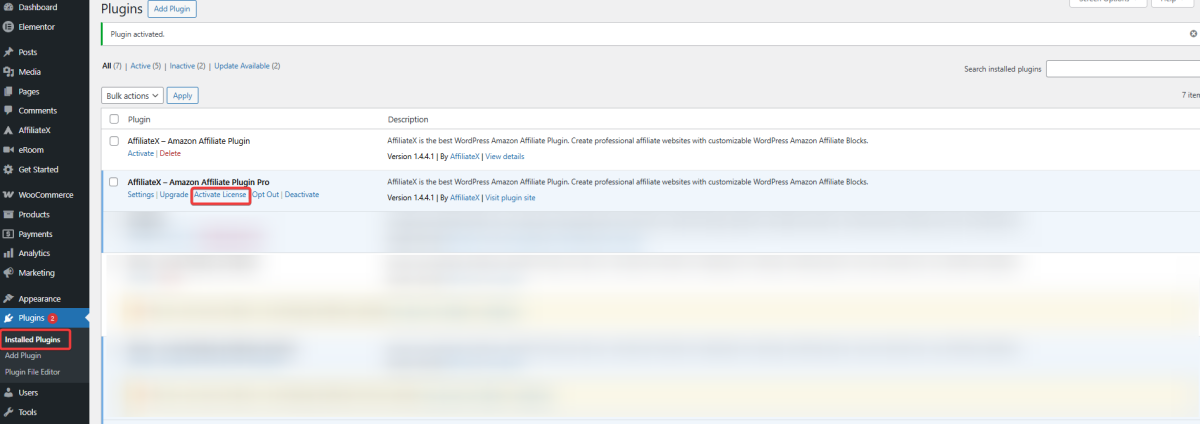
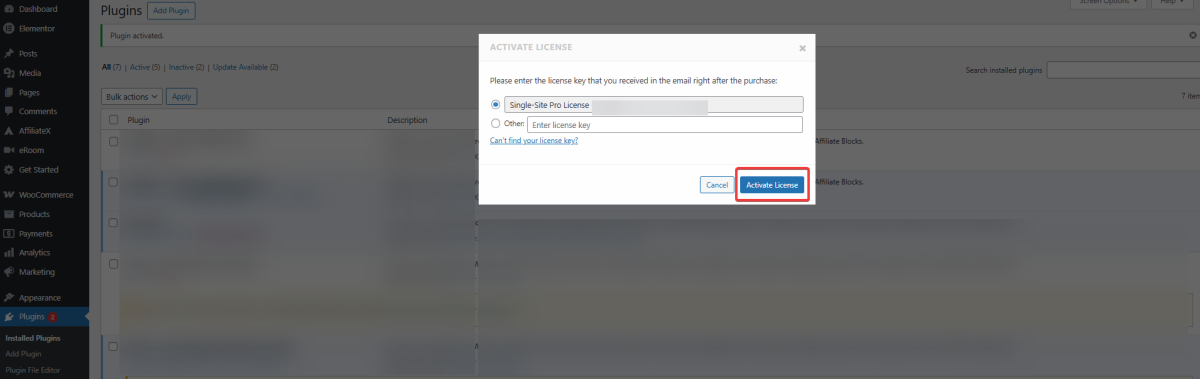
After successfully activating the AffiliateX Pro, the plugin will be automatically shown on your “Installed Plugins” page. Just click the “Activate License” option to enter your license key.
A pop-up page will show up. Enter your license key in the box. Once you have entered your license key, check the details and click the “Activate License” button.
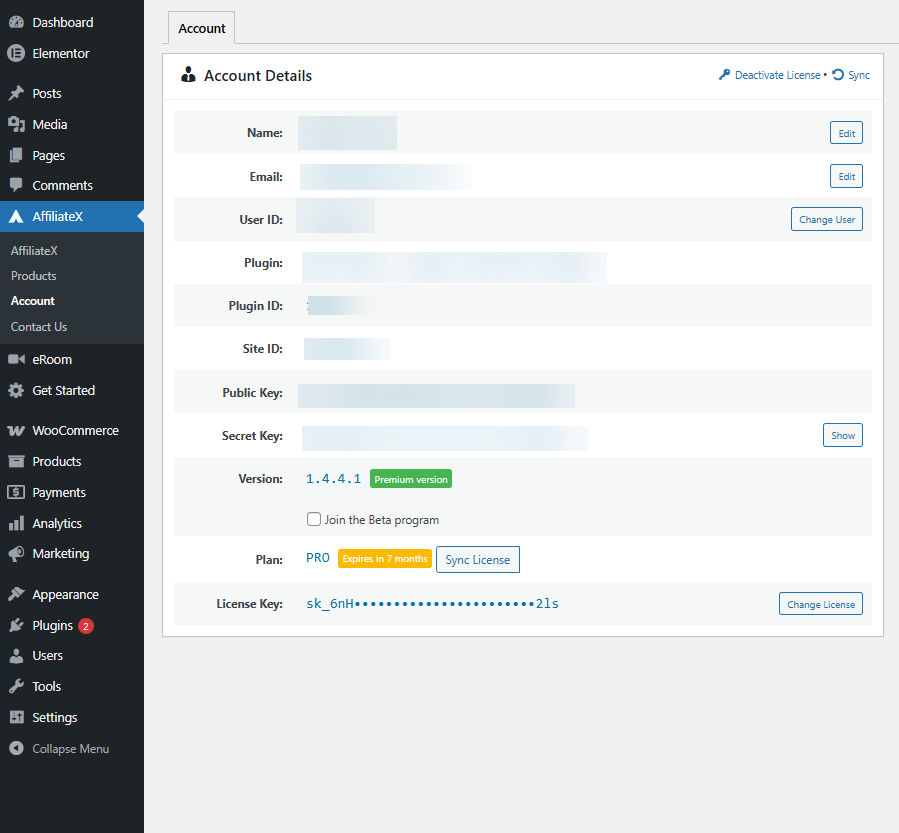
Immediately after your license is successfully activated, your “Account” page will display your account details, as shown below.
This is how, simply by following some simple steps, you can install and activate AffiliateX Free & AffiliateX Pro plugin on your WordPress site.
If you want to explore AffiliateX blocks and features, check the AffiliateX documentation site for details. Also, feel free to contact our dedicated support team at support@affiliatexblocks.com for any further assistance.