


AffiliateX block template, also known as a reusable block, is a content block you create and use multiple times in posts or pages on your website. This guide shows you how to easily create, add, and manage AffiliateX block templates in Elementor Editor on your website.
How to Create AffiliateX Block Template In Elementor
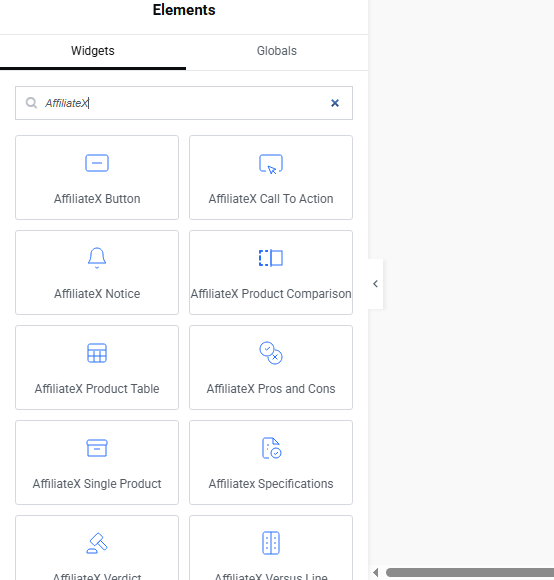
In your Elementor editor, navigate to the “Element” panel. Search for any AffiliateX block you want to use. For example, type “AffiliateX Button” in the search bar and drag the block on your Elementor Editor.
Customize the block to suit your preference. Right-click the 6-dotted icon at the top of the block’s container in your Elementor editing canvas. Scroll down and select “Save as a template”.
Give the template or reusable block a name and save it. Use a name that you can easily remember, especially when you have multiple saved templates. This template will appear in the template library as seen in the sample below.
How to Add AffiliateX Block Template to Posts and Pages In Elementor
After you have created an AffiliateX block template in Elementor editor, you can start using it across different posts and pages on your website. Here is how to add it.
On the Elementor editing canvas, click the middle icon as shown below.

Note that the default icon you will see in the middle is a “folder icon,” but it may change depending on the WordPress theme you are using, as seen below.

The template library will open. Click “Insert” to add the template to your post or page.
You can also learn how to reuse AffiliateX blocks in the Gutenberg editor. And if you want to explore more useful AffiliateX blocks and features, check the AffiliateX documentation site for details.