


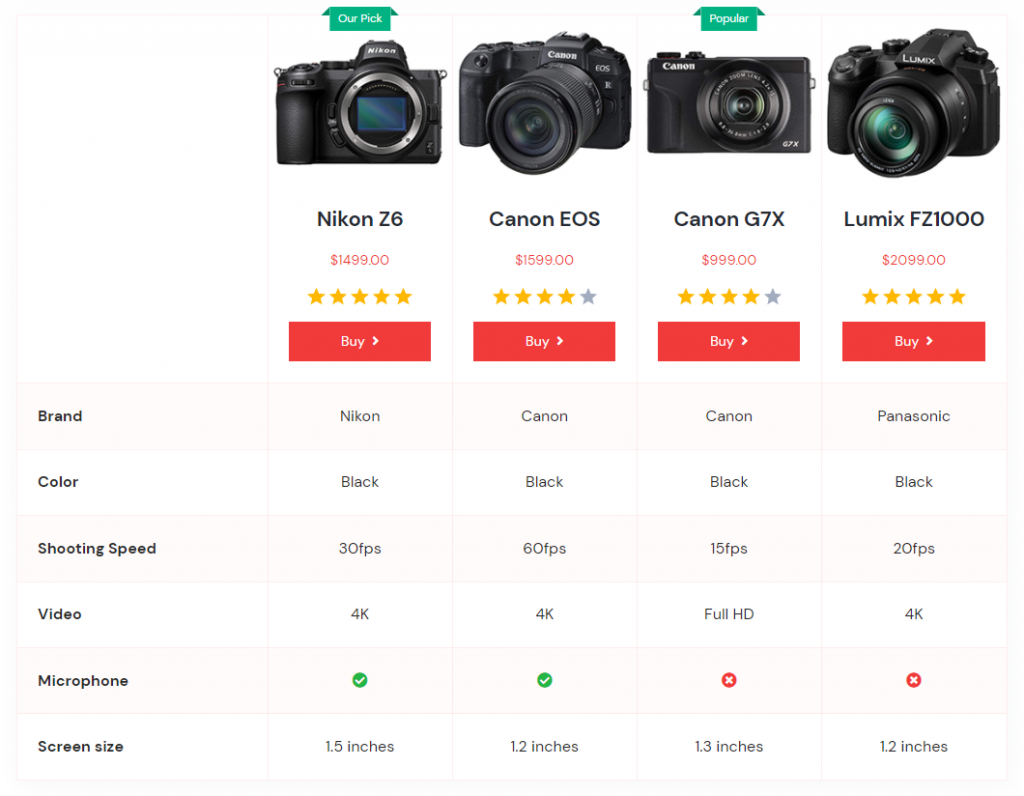
You can add a product comparison table comparing the product specifications via the AffiliateX Product Comparison block. Here’s a detailed guide for creating a comparison table with AffiliateX on WordPress.
How to add the AffiliateX Product Comparison block?
- On a page/post editor, click on the Add block icon
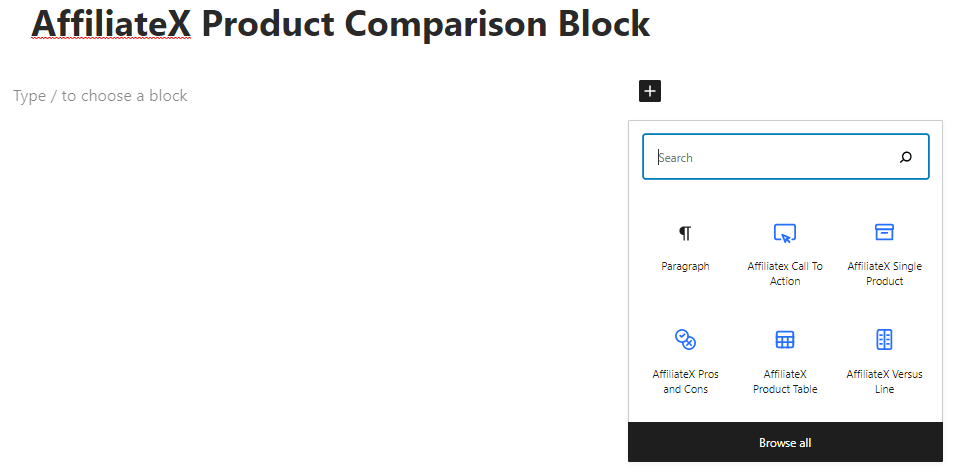
- Search for AffiliateX Product Comparison and click on the block to add it
- You will get a default block design which you can modify via the provided Block Settings
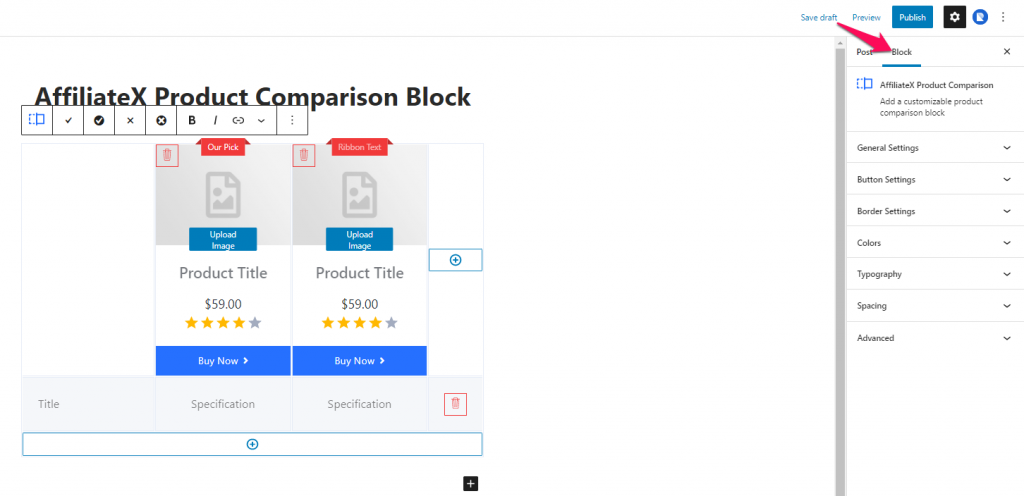
Block Settings
The following is the list of block settings provided to customize the AffiliateX Product Comparison block.
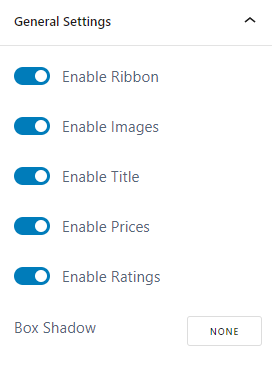
General Settings: You can enable/disable different block elements and also choose to add the box-shadow effect to the Product Comparison block.
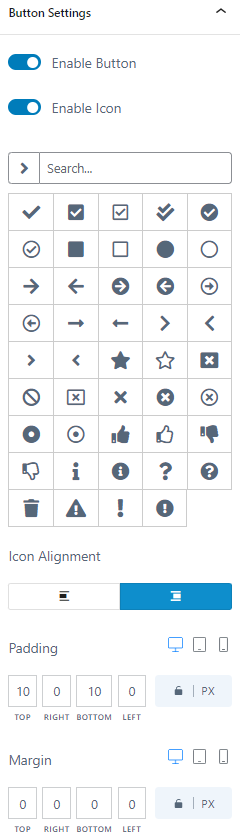
Button Settings: You can enable/disable the button and icon, select the icon and icon alignment, and assign margin and padding values for the Buy Now button via this setting.
Border Settings: You can add and configure the border for the Product Comparison block.
Colors: Here, you can choose a color for each block element and configure the block’s background.
Typography: You can configure the font settings for the different block elements.
Spacing: You can assign a margin and a padding value for the block added.
If you want to explore more useful AffiliateX blocks and features, check the AffiliateX documentation site for details.