


Follow these steps to use the Amazon API with the Amazon AffiliateX plugin. In your Elementor editor, navigate to the “Element” panel. Search for any of the AffiliateX blocks you want to use. For example, “AffiliateX Single Product” in the search bar.
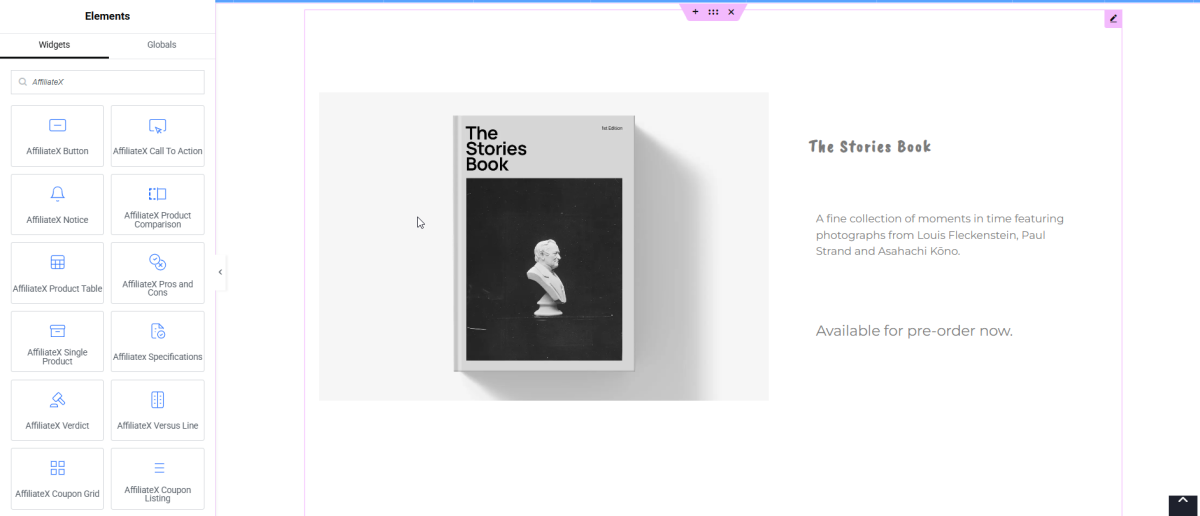
Drag and drop the block from the elements panel and drop it into your desired section on the Elementor canvas.
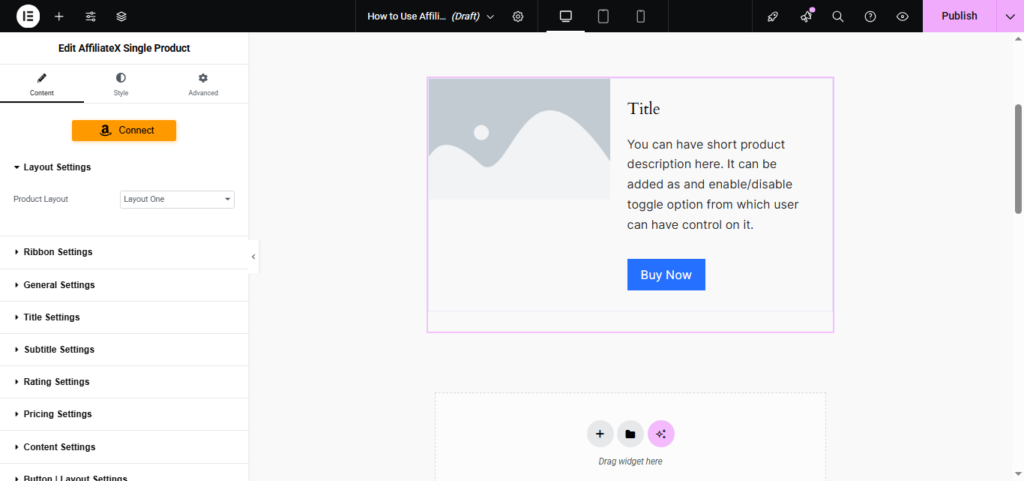
You can connect only a single field, like only image, only title, only description, only pricing, or only link, or you can connect all the fields at once.
How to Connect All Product Detail Fields at Once
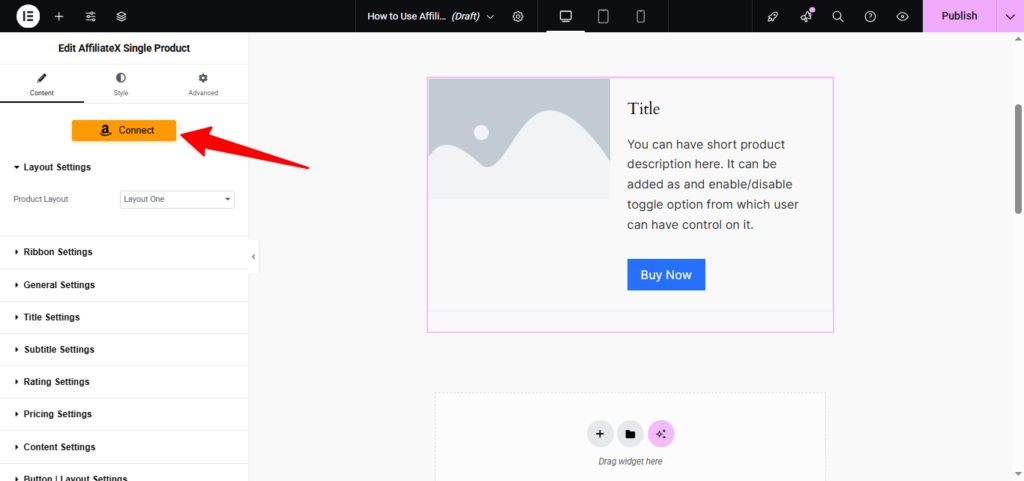
Click the “Connect” button to open the “Amazon Product Search” modal.
Insert the keywords to view various products available for you to pick from.
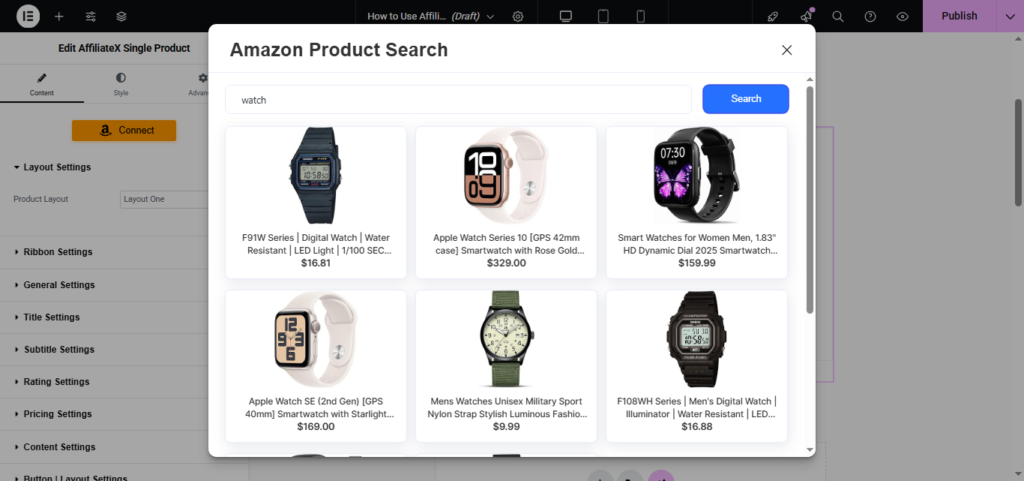
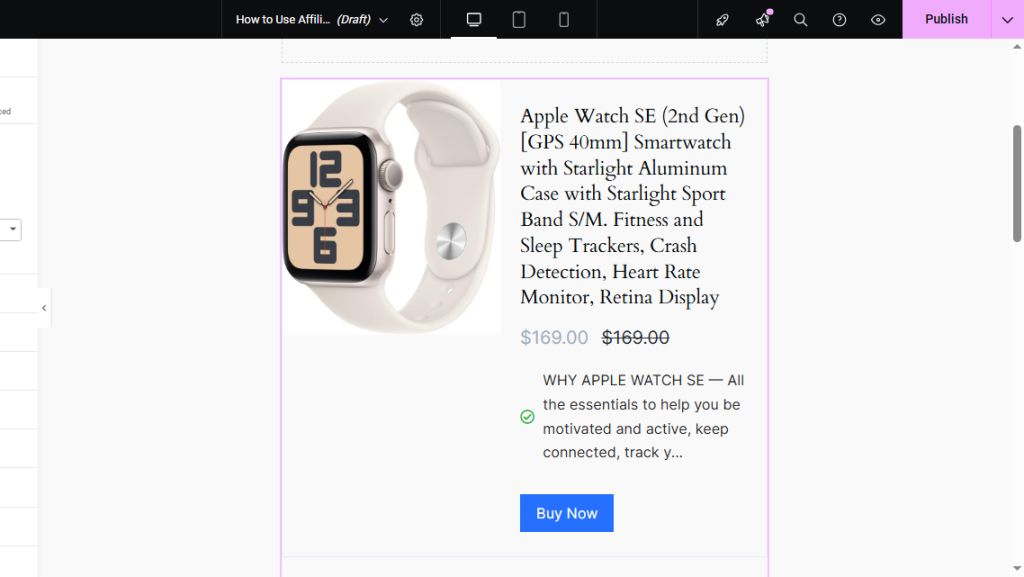
Click on your preferred product to view the product details (title, image options, description, pricing, and your unique tracking link).
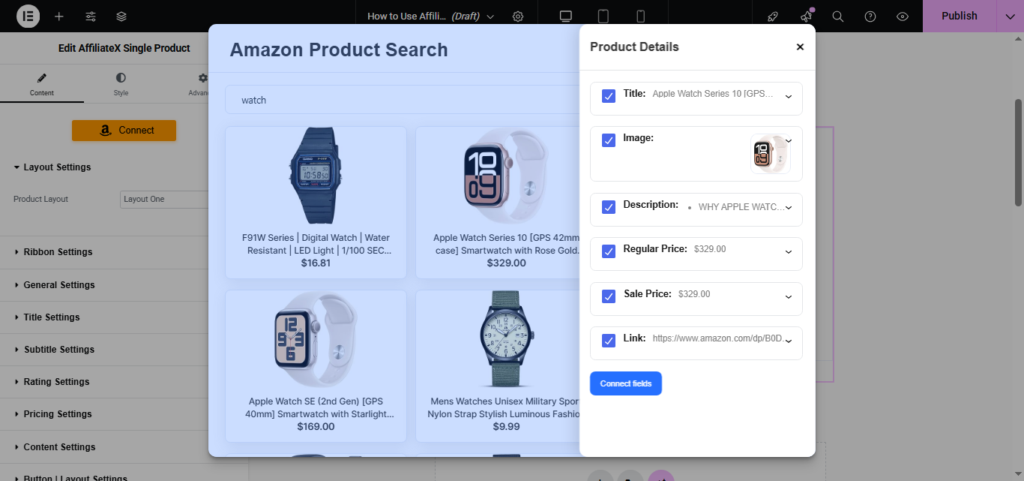
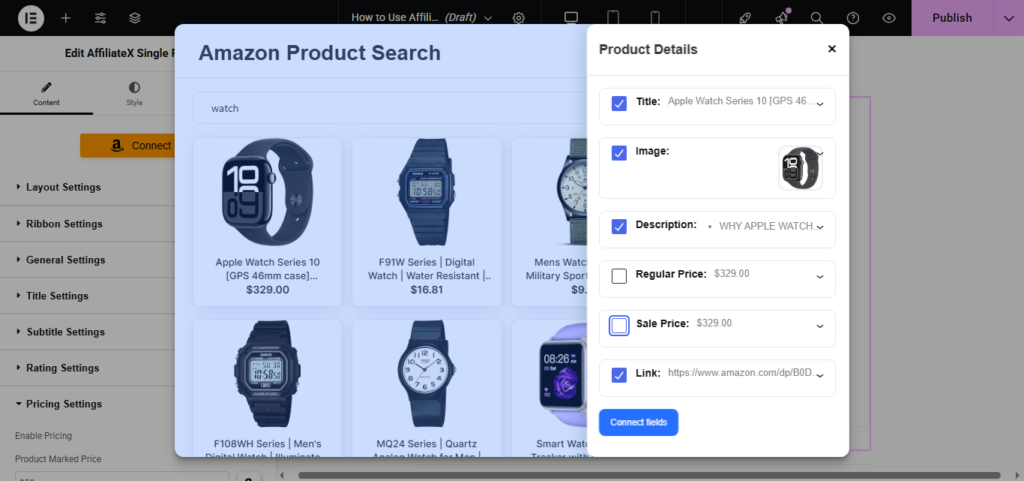
Automatically, all fields are checked. If you do not want to connect any field, you can uncheck it, as seen below.
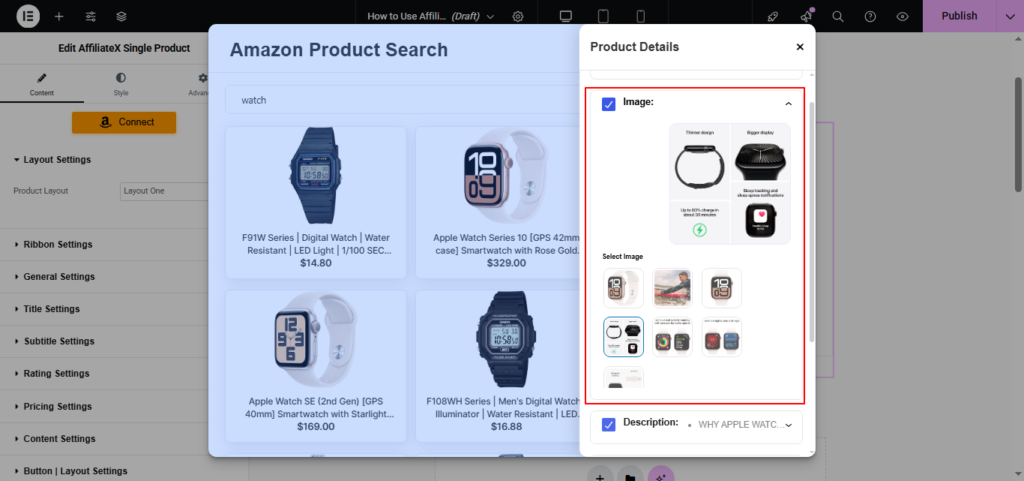
To change the image, click the drop-down arrow icon on the image section to select your preferred image from the multiple product images provided.
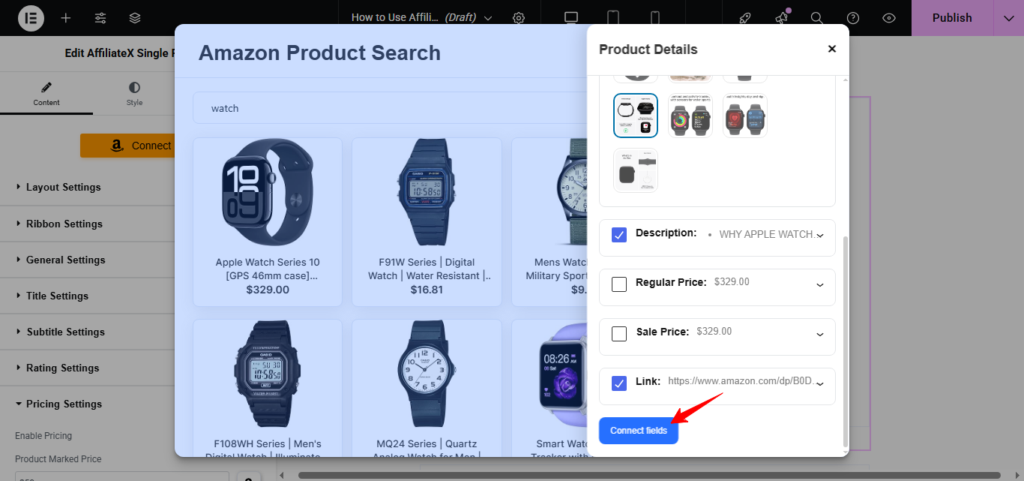
Once you are satisfied, click “Connect fields.”
Click the “change” icon on the sidebar panel to change the product, image, or disconnect any connected field.
How to Connect Individual Fields
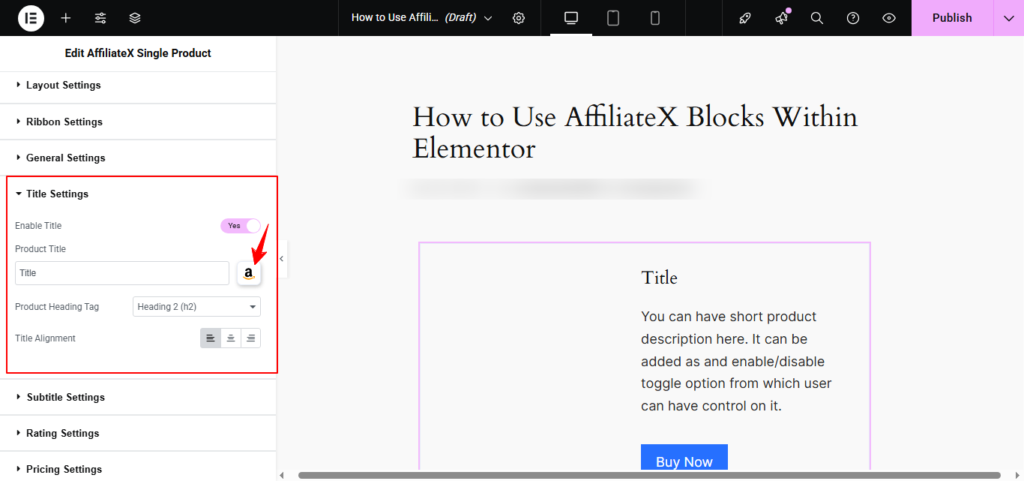
Connecting Title Field
Click the “Title Settings” drop-down menu to view the settings. Click the Amazon icon to search for the product and connect the title.
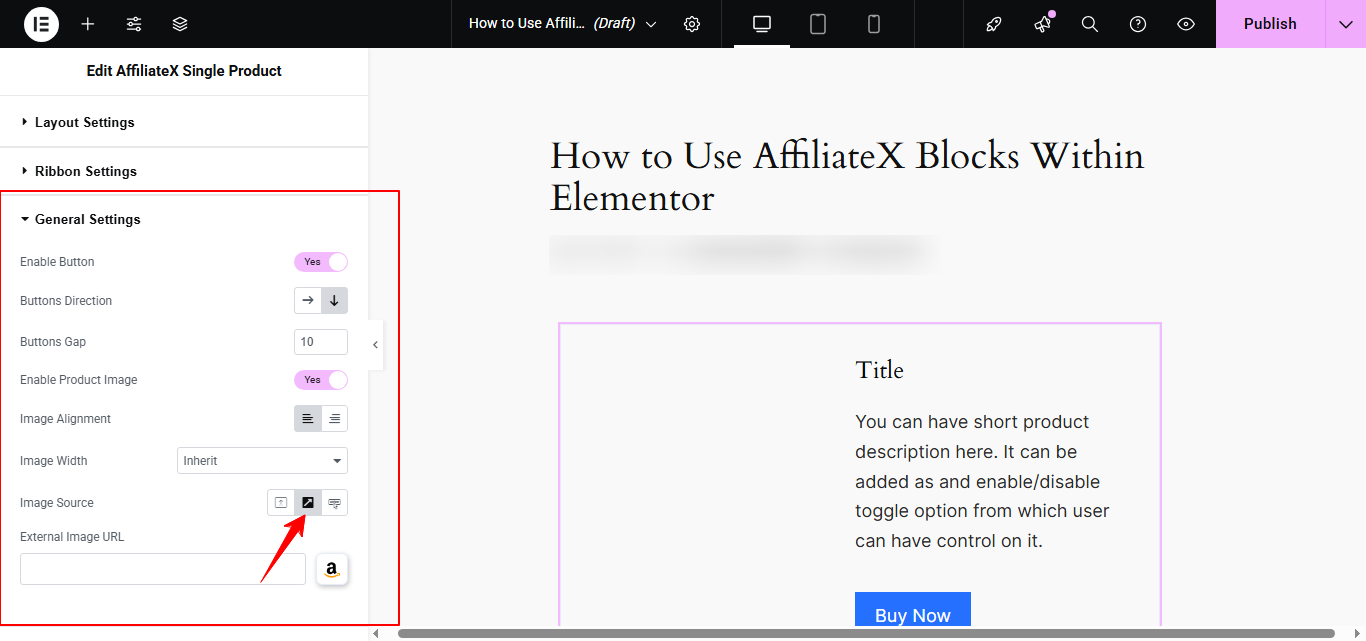
Connecting Image Field
To connect the image field, click the “General Settings” drop-down menu. On the “Image Source,” select the”↗” arrow icon, which means “external source.” Click the Amazon icon to search for the product and connect the image.
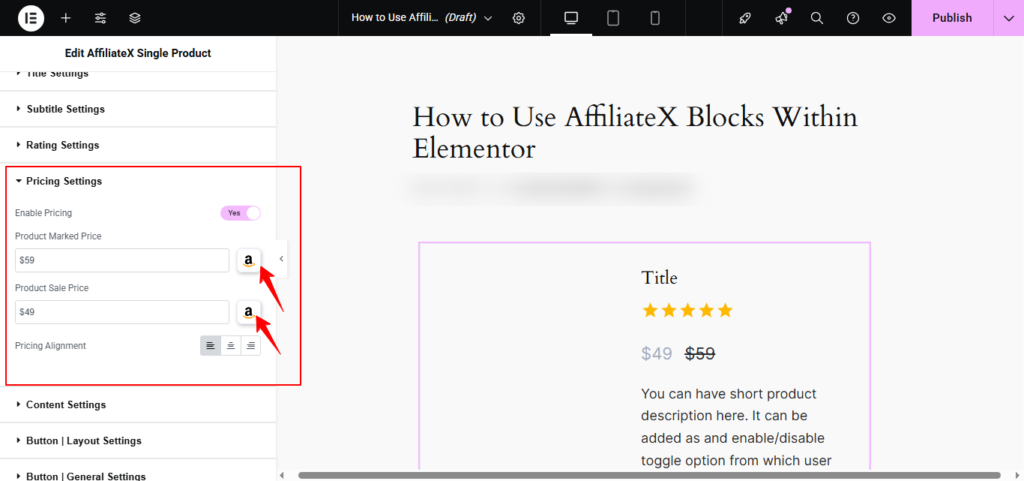
Connecting Pricing Field
To connect the pricing field, click the “Pricing Settings” drop-down menu. Enable the pricing by changing to “Yes.” Click the Amazon icon to search for the product and connect the sale price or the marked price (initial price).
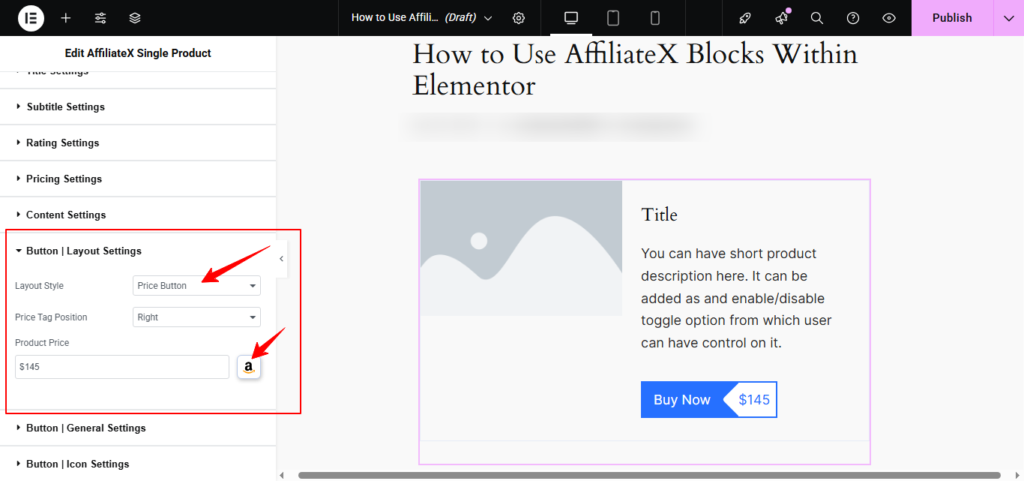
You can also connect the product price to the button. To do this:
Click the “Button | Layout Settings” drop-down menu.
Change the Layout Style to “Price Button.”
Click the Amazon icon to search for the product and connect the sale price.
Connecting Description Field
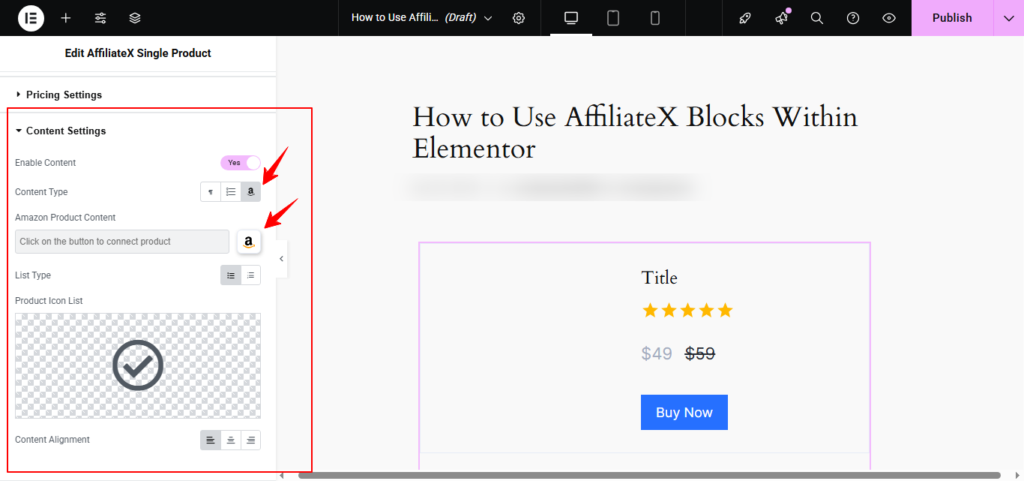
To connect the product description field, click the “Content Settings” drop-down menu. Select the Amazon icon to change the “Content Type.” Click the Amazon icon to search for the product, and copy a description from Amazon.
Connecting Your Tracking Link
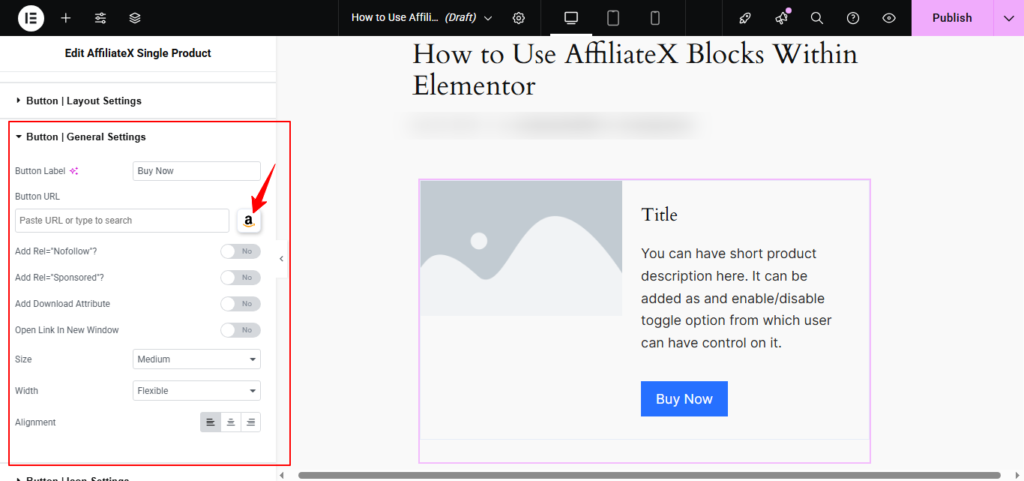
To connect your Amazon tracking link, click the “Button | General Settings” drop-down menu. Click the Amazon icon to search for the product, and connect your tracking link for the specific product you are adding.
If you want to explore more useful AffiliateX blocks and features, check the AffiliateX documentation site for details.