


AffiliateX 1.4.4 version, we are introducing the Image Slider feature for several AffiliateX blocks: Single Product, Single Coupon, Single Product Pros and Cons, and Product Image Button. You can now easily fetch product image and image-related data with Amazon Creator API and showcase an interactive image slider on your affiliate website. Also, if you want, you can add product images manually to the AffiliateX blocks mentioned above and display them interactively.
Note: This image Slider feature update is also available for AffiliateX v1.4.4, free, and with Amazon integration.
How to Configure Image Slider Feature in AffiliateX Product Image Button Block
Here, the AffiliateX Product Image Button block shows you how to easily configure the image slider feature to showcase your product images in slider mode, using the API Creators API connection and manually.
Step 1: By successfully integrating with Amazon Creators API credentials, navigate to the affiliate page or post from your WordPress dashboard and press the “+” icon, search for AffiliateX Product Image Button block, and drag and drop it to your preferred place.
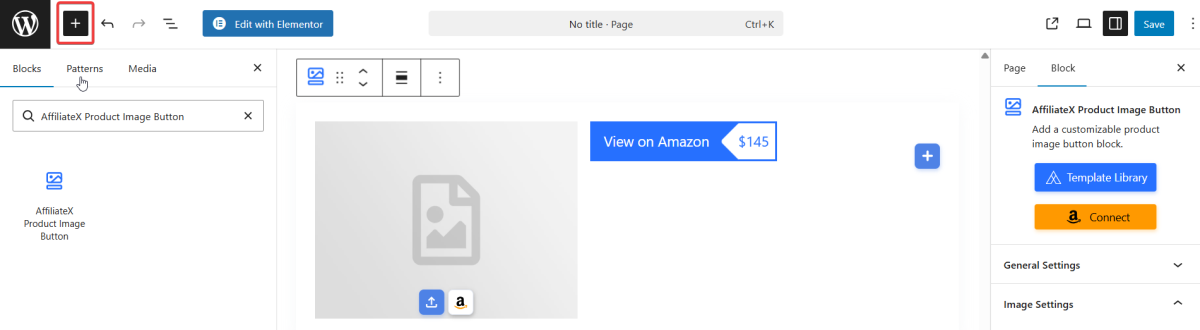
Step 2: You will now get a default Outlook, and you can choose from ready-made block template designs or manually design your block as per your preferences.
Now, click AffiliateX Product Image Button Block → Image Settings → Amazon Product Search section icon at the top.
You are now ready to search for your desired Amazon product, select images by clicking the Amazon API integration icon, and enable the “Use Multiple Images” option to display your product’s multiple images, as shown on Amazon. You can easily pick all or the selected images of your affiliate product.
Step 3: Now you can fix the product’s Image Alignment, Image Horizontal Alignment, Image Vertical Alignment, Image Width, and Radius.
After that, you can configure the Slider feature by enabling Show Pagination and Show Arrows. You can also choose the Arrow Color and Arrow Hover Color, and enable the slider image Auto Play option with a speed selection facility.
Other than that, you can manually add multiple product images from the Images section and configure them in the same way you have done for Amazon Creators API mode.
These steps are the same for AffiliateX Product Image Button block, Single Product block, Single Coupon block, and Single Product Pros and Cons block. All you have to do is choose your preferred block, open the ‘Image Settings’ section, and start configuring the image slider for it.
Note: If you are unable to start immediately with Amazon Creators API due to any sort of Amazon acceptance issues, you can use AffiliateX Zero API as your solution immediately without providing the Creators API connection as a beginner or as an advanced user with Creator API credentials issues.
Ready to Start with AffiliateX Zero API?
Zero API is perfect for new affiliates and pros who want to avoid API limits or errors. Join thousands of creators using AffiliateX to build better affiliate sites right away!