


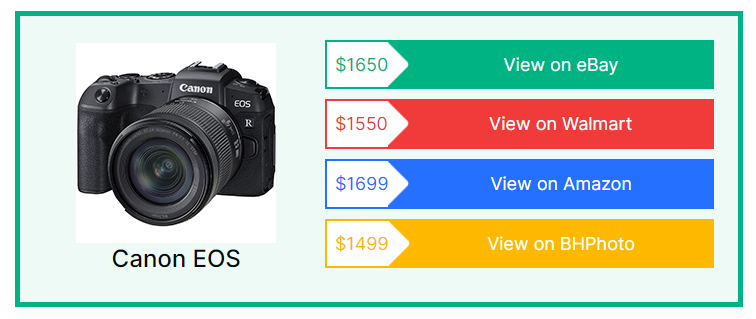
The AffiliateX Product Image Button block provides an option to add multiple CTA buttons for an affiliate product that can be linked to the online stores selling the respective product. It also allows adding a price tag to each button so that customers can compare the prices on each website.
How to add the AffiliateX Product Image Button block?
- On a page/post editor, click on the Add block icon
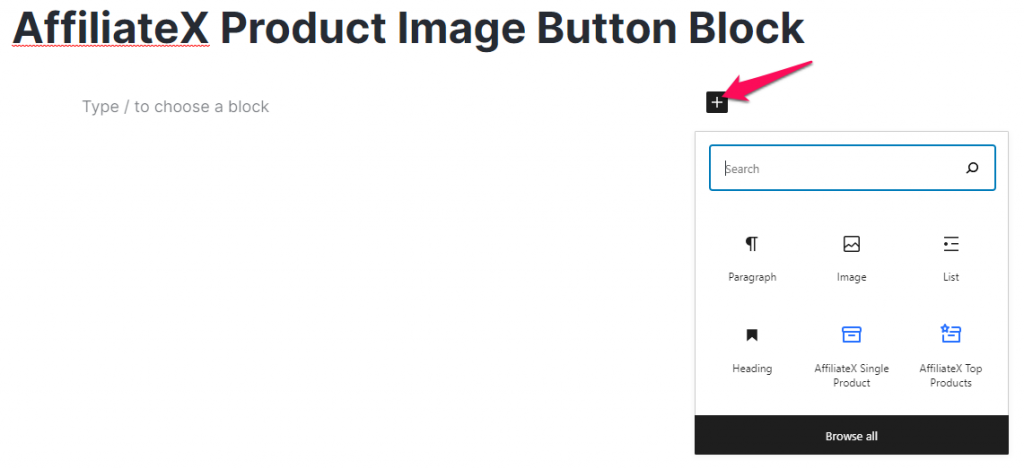
- Search for AffiliateX Product Image Button and click on the block to add it
- You will get a default block design which you can modify via the provided Block Settings
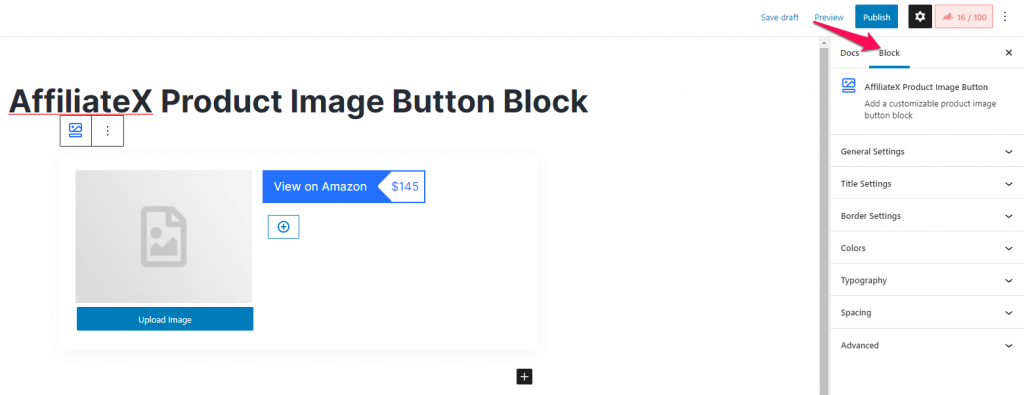
Block Settings
The following is the list of block settings provided to customize the AffiliateX Product Image Button block.
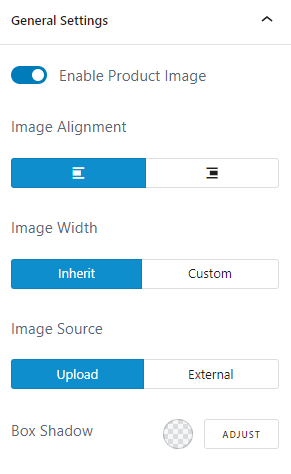
General Settings: You can enable/disable the option to display product image, select the image alignment, width, and apply box-shadow effect to the entire block. You can also choose to upload your own image for the Affiliate product, or you can fetch the image directly from an external URL.
Title Settings: Here, you can choose to hide or display the product title, enter the product title and select a tag and alignment for the title.
Border Settings: You can add a border to the entire block via this setting.
Colors: You can choose color for the product title and also configure the background for the block.
Typography: This setting allows you to configure font settings for the product title.
Spacing: You can assign a margin and a padding value for the Product Image Button block.
If you want to explore more useful AffiliateX blocks and features, check the AffiliateX documentation site for details.