


AffiliateX lets you configure the default styling for all the plugin’s blocks. You can also override the default styling and customize individual blocks via their respective settings. It will help you to establish a consistent brand identity for your affiliate programs by configuring the default styles.
How to Configure AffiliateX Customization Settings
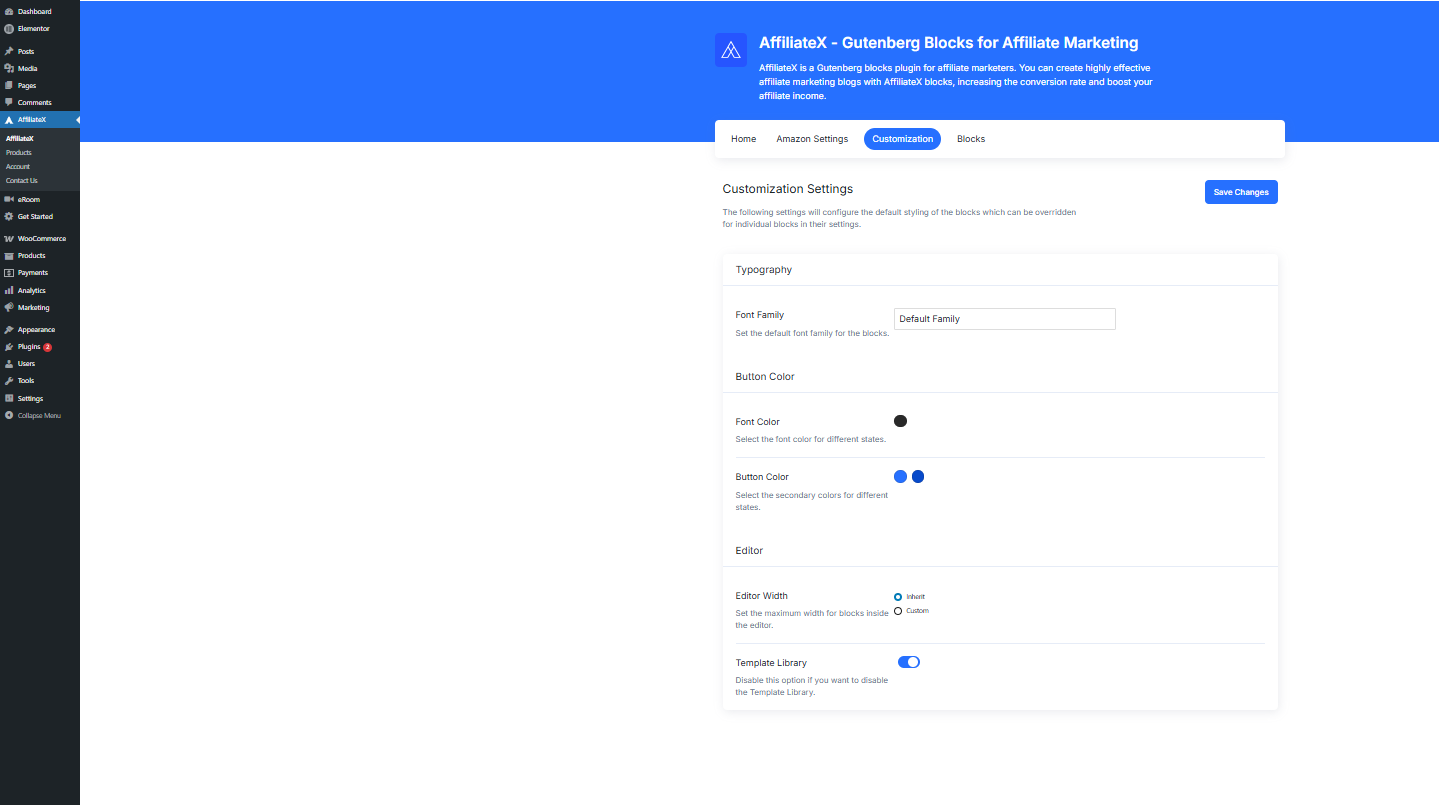
Step 1: Just navigate to the AffiliateX General Customization settings via WordPress Dashboard → AffiliateX → Customization.
Step 2: Here you will be able to make changes to global Typography, Button Color, and configure your Editor as per your wishes.
Step 3: After making all the changes, just hit the ‘Save Changes’ button, and you are all set to launch your affiliate website’s global settings for blocks with AffiliateX customization settings.
If you want to explore more useful AffiliateX blocks and features, check the AffiliateX documentation site for details.