


A reusable AffiliateX block or pattern is a content block you create and use multiple times in posts or pages on your website. It can be either a synced or unsynced block/pattern. This guide shows you how to easily create, add, and manage AffiliateX block patterns in your Gutenberg Editor.
How to Create AffiliateX Block Pattern (Reusable Block)
First, you need to open your preferred Gutenberg page/post editor, click the “Add block” icon.
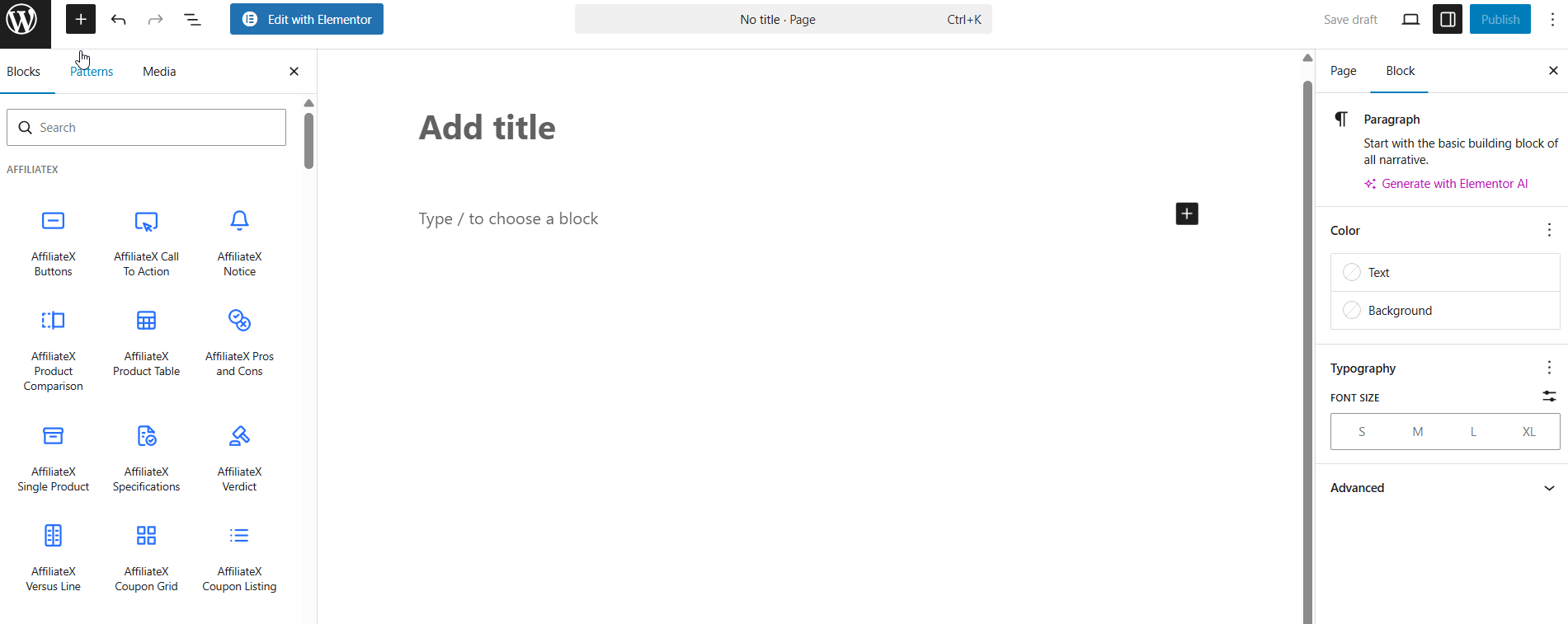
Add the AffiliateX block you want to reuse multiple times, then customize it using the block panel on the right. Once you have customized the block, click the “three-dot menu” button in the block toolbar above the block. A dropdown menu will display. Click the “Create Pattern” option.
Next, a pop-up will appear, allowing you to add a name, select a category, choose a synced option, and hit the “Add” button.
Give the pattern a name. Use a name that you can easily remember, especially when you have multiple saved patterns. Select a category from the list, or enter a new one.
Synced Vs. Unsynced Pattern (Reusable Block)
After you add the name and category, you will see a synced button that is already enabled. When you enable the “synced” option, it means that whenever you edit the synced block or pattern, the change will update in all the posts or pages that reuse that block.
When you “unsynced” by not enabling the synced button, it means when you edit the reusable block, the changes will not be updated in other posts or pages where you are using the same block.
After you have either enabled or disabled the synced option, click “Add.”
Adding AffiliateX Reusable Block Pattern to Posts and Pages
After you create an AffiliateX reusable block pattern, you can use it across different posts and pages on your website. Here is how to use it.
On the new post/page editor, click the “+” button at the top left corner of the screen. Click on the “Patterns” option.
This Pattern menu will display the categories of the reusable blocks you have saved. When creating the reusable AffiliateX block above, we selected the “Featured” category. Click the “Featured” category option in the list.
If you have multiple patterns, type the name you saved the pattern under in the search bar to find it. Now, click on the pattern to add it to the post/page.
Managing Reusable AffiliateX Block Patterns
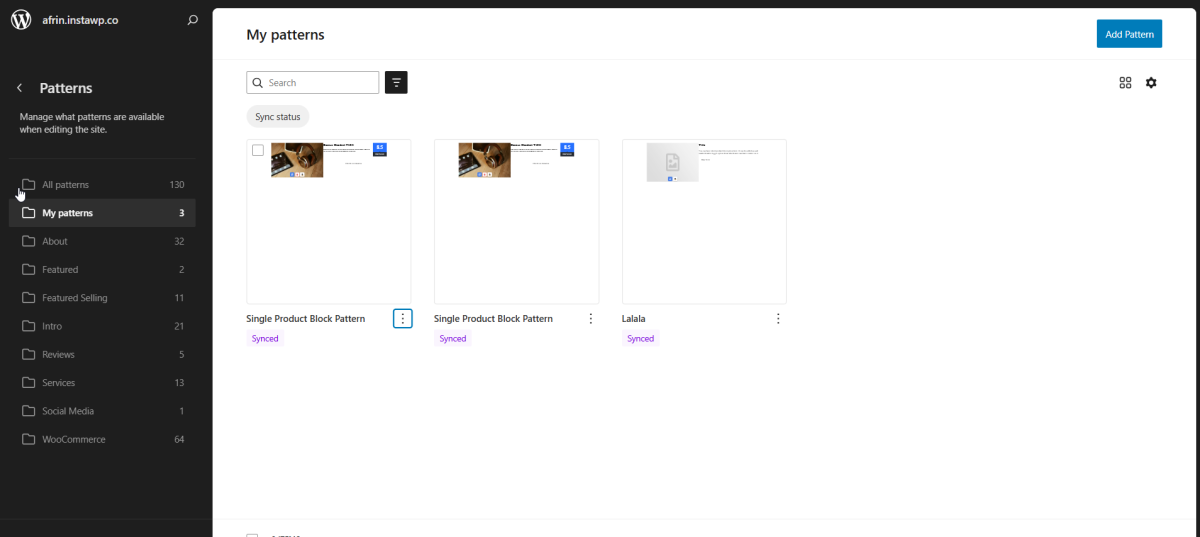
In your WordPress Admin Dashboard, go to Appearance>Patterns. Here, you will see all the patterns you saved on All Patterns. You can pick My Patterns or Featured categories to get your saved patterns directly from there. You can edit them from this page.
To edit any pattern, click the “three-dot menu” under the pattern. A list of options is displayed as shown below.
You can also add new AffiliateX reusable blocks from this page. Click the “Add Pattern” button in the top-right corner of the page.
You can also learn how to reuse AffiliateX blocks in the Elementor editor. And if you want to explore more useful AffiliateX blocks and features, check the AffiliateX documentation site for details.